
As a freelance designer, crafting the perfect logo is only part of the job. Knowing how to export logos for different platforms, use cases, and clients is a skill in itself. Whether you’re optimizing for a website, print material, or social media, using the right export presets ensures that your logo looks sharp and consistent everywhere it goes. The right preset not only saves time but also improves your professional delivery—showcasing quality from design desk to client hands.
TL;DR
Choosing the correct export preset for your logo work is essential for maintaining quality across platforms. This article walks you through 10 logo export presets every freelancer should have in their toolkit, from vector masters to transparent PNGs and scalable SVGs. These presets help streamline workflow and ensure your logos are future-proof and presentation ready. Perfecting your export process will reflect positively on both your professionalism and your clients’ branding.
1. Master Vector File (AI)
Your logo’s original vector format is sacred. Always export a master version in Adobe Illustrator (.AI) format. This file should be left editable, with named, organized layers and no embedded images. It’s the source of truth that both you and your client will return to for future edits or format conversions.
Why it matters: A vector AI file allows for infinite scalability and precise control over every part of the design.
2. EPS for Professional Print
EPS (Encapsulated PostScript) is the standard for professional printing needs. Save your vector file as an EPS with embedded fonts converted to outlines and color profiles properly set for CMYK printing.
Best used for: Print shops, billboards, store signage, and advertising agencies who prefer industry-standard formats.
3. SVG for Web and UI
Exporting an SVG version of your logo is essential for responsive design. SVGs are resolution-independent and load quickly, making them ideal for websites, apps, and other media where scalability is key.
Pro tip: Clean up unnecessary metadata and keep file sizes small while maintaining styling via CSS or embedded paths.
4. Transparent PNG (1000px or 2000px Wide)
PNG files are great for quick viewing and flexible placement in both digital and light-print formats. A transparent background adds versatility, especially helpful when placing the logo on colored or textured backgrounds. Aim for export sizes like 1000px and 2000px in width for optimal resolution across devices.
Where to use: Social media profiles, websites, PowerPoints, and client mockups.
5. JPEG for Lightweight Sharing
While not ideal for logos with transparency, JPEGs are useful when clients need a lightweight file to preview, email, or upload somewhere that doesn’t support transparency. Export in RGB with high quality (80–90%) and use mid-sized dimensions like 1200x800px.
Note: Avoid using JPEGs for final delivery—use them only for reference or non-critical display.
6. Favicon Format (.ICO & .PNG 32×32)
Every brand with a website should have a favicon. Export a 32×32 PNG and a .ICO file for cross-browser compatibility. Use a simplified version of the logo to maintain visibility at small sizes—usually just initials or icon elements.
Why this matters: Favicons build brand recognition and polish a web presence.
7. PDF for Office & Client Review
Exporting your logo as a high-resolution PDF gives clients something easy to open and print without specialized software. PDFs are also excellent for embedding logos into branding guidelines, presentations, and documentation.
Include both: RGB and CMYK profiles depending on use.
8. Mockup-Ready PSD
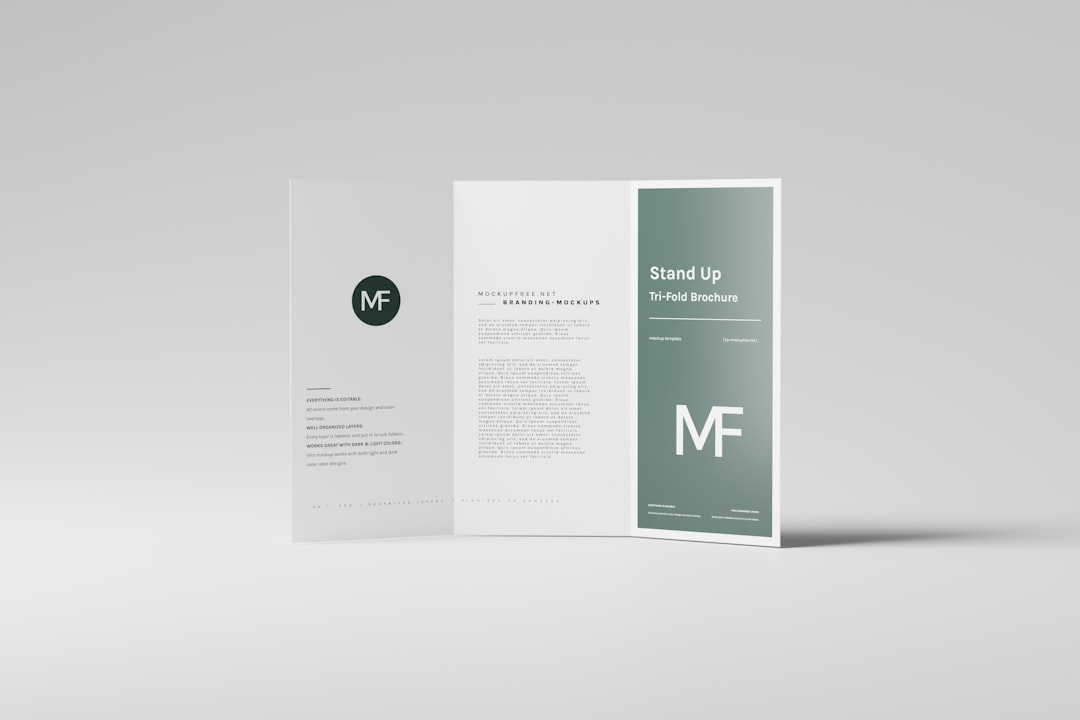
Sometimes, clients want to see their new logo in action. Export a Photoshop (.PSD) file with smart objects and transparent layers. Keep elements organized for easy modification; this is especially useful for designers creating product mockups or promotional visuals.
Use case: Branded t-shirts, coffee mugs, packaging, or internal proofing.
9. Black and White Version (PNG & PDF)
Logos should be legible in monochrome—a crucial requirement for stamps, faxes, engravings, and some print jobs. Export a high-quality monotone PNG and a vector PDF version of the black and white logo.
Pro tip: Make sure the contrast and legibility hold up even at smaller sizes.
10. Social Media-Sized Singles
Each platform has unique size requirements; exporting social media–ready logos in correct dimensions makes your clients’ job easier and shows real attention to detail. For example:
- Facebook Profile: 180x180px PNG
- Instagram Feed: 1080x1080px PNG
- X/Twitter Header: 1500x500px JPEG or PNG
- LinkedIn Logo: 300x300px PNG
Deliver these as a package: Prepare a zipped folder titled “Social Media” with images named by platform for clarity.
Bonus Tip: Standard Naming Convention
Clients love organized files. Create a consistent naming convention, such as:
- Logo_[ColorMode]_[Size]_[FileType].ext
Example: Logo_RGB_1000px_PNG.png or Logo_CMYK_Master_EPS.eps. This makes it easier for clients to find what they need without asking.
Packaging Your Exports
Always include a “Read Me” file outlining the purpose of each format. Group files into folders:
- Master Files (AI, EPS, SVG)
- Digital (PNG, JPEG, PDF)
- Print (CMYK EPS, PDF)
- Social Media (platform-specific sizes)
- Mockups (PSD, PNG)
- Monochrome (B&W versions)
This turns your deliverables into a professional toolkit your client will value long after the invoice is paid.
Final Thoughts
Freelancers who understand not only how to design but also how to export prepare logos professionally, elevate their branding game to the next level. These 10 presets ensure you’re ready for any client request, from high-resolution print to modern-day web and mobile needs. Building these into your standard workflow will save you time, reduce back-and-forth, and enhance your client satisfaction. The file formats you deliver are more than just extensions—they’re your reputation in action.