
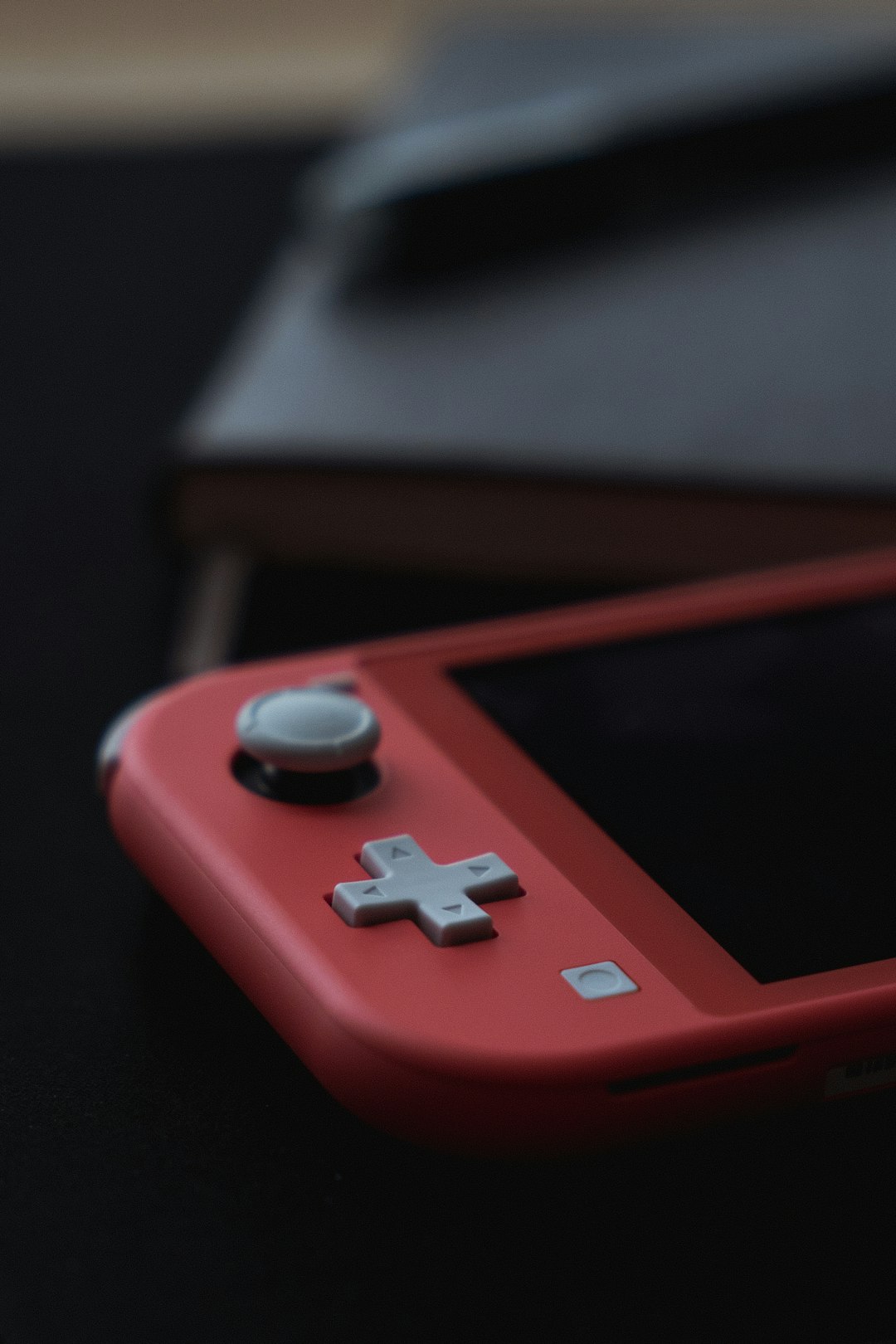
When your Nintendo Switch refuses to turn on, it can feel like a serious problem—especially if it was working perfectly fine the last time you used it. Whether you’re seeing a black screen, no charging indicator, or no response at all, the issue is often less severe than it appears. In many cases, the cause is minor and fixable without professional repair. Understanding what’s happening is the first step toward getting your console back up and running.
TL;DR: If your Nintendo Switch won’t turn on, it’s usually due to a drained battery, charging issue, software crash, or faulty power button. Start by performing a hard reset and charging with the official adapter for at least 30–60 minutes. Check cables, outlets, and the dock, and inspect for physical damage. If none of these steps work, your console may require professional repair.
1. Perform a Hard Reset
A fully unresponsive Nintendo Switch often just needs a forced reboot. The system can freeze in a low-power state, making it appear completely dead.
How to force restart your Switch:
- Press and hold the Power button for 12–20 seconds.
- Release the button and wait a few seconds.
- Press the Power button once more to turn it back on.
This process forces the system to shut down fully before restarting. If your Switch screen was black due to a system crash, this usually resolves the issue immediately.
2. Charge It Properly (And Be Patient)
One of the most common reasons a Switch won’t turn on is a completely drained battery. If the device hasn’t been used for a long time, the battery may be deeply discharged and require extended charging before responding.
Important: Always use the official Nintendo AC adapter or a certified USB-C charger that meets proper power specifications.
- Plug the charger directly into a wall outlet, not a power strip.
- Avoid using third-party docks temporarily.
- Let the Switch charge for at least 30–60 minutes.
- After charging, hold the Power button for 15 seconds, then press it again.
If you were trying to power it on repeatedly before charging, the battery may need extra time to recover.
3. Check the Charging Cable and Adapter
A faulty charging cable can make it seem like the console itself is broken. USB-C cables can wear internally without visible damage.
Signs your charger may be the problem:
- No charging icon appears (even briefly).
- The console does not warm up slightly while charging.
- The cable feels loose in the port.
Test with:
- A different wall outlet
- A different USB-C cable (official, if possible)
- A direct wall connection instead of the dock
If the console powers on with a different charger, you’ve identified the issue.
4. Inspect the Charging Port
Dust, lint, and debris inside the USB-C port can prevent proper charging. Even a small obstruction can interrupt power flow.
How to inspect safely:
- Use a flashlight to look inside the USB-C port.
- Gently remove debris with a wooden toothpick or compressed air.
- Avoid metal objects that can damage internal contacts.
If the charging port appears damaged or bent, professional repair may be required.
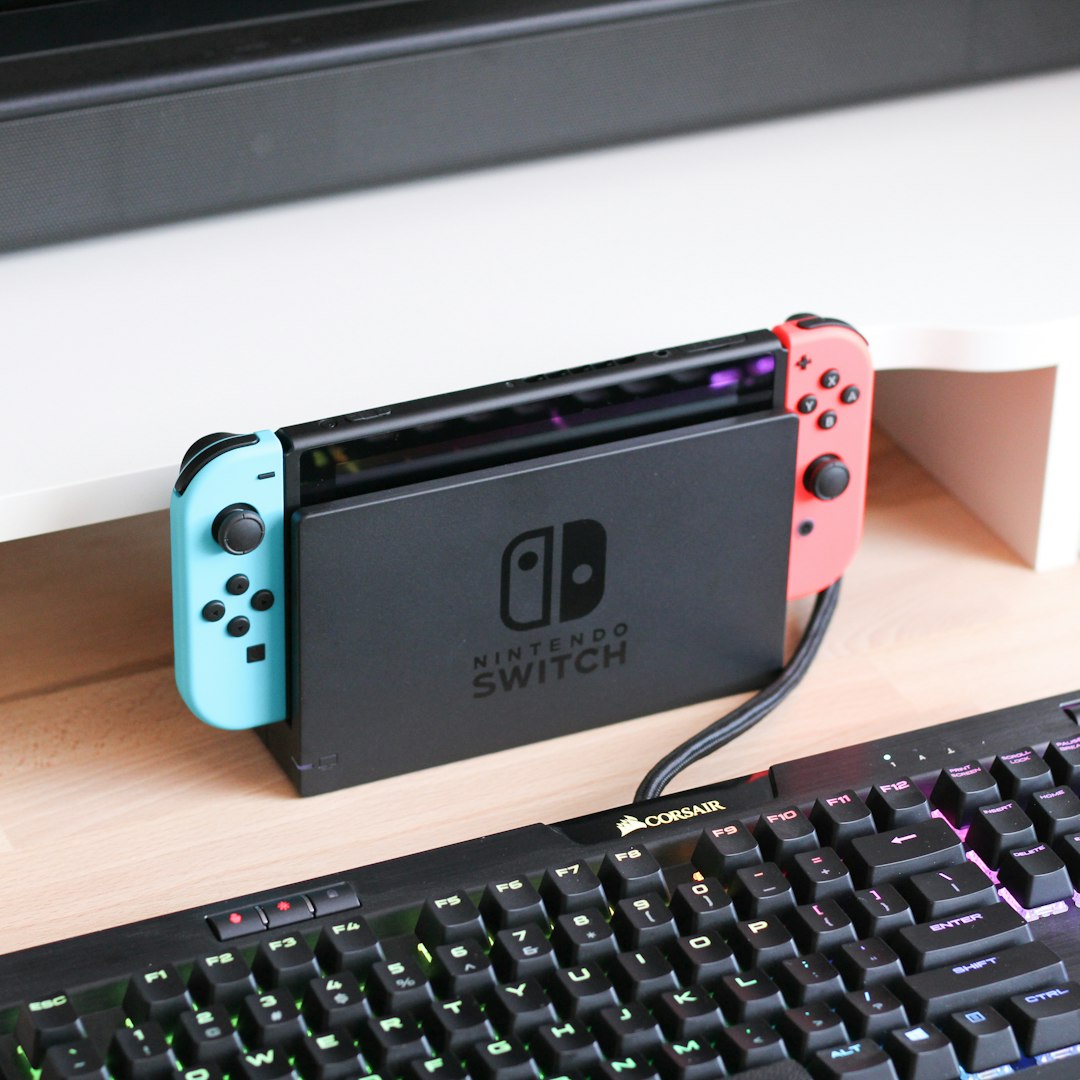
5. Bypass the Dock
If your Switch won’t turn on while docked, the dock itself might be the problem.
Troubleshoot the dock:
- Remove the Switch from the dock.
- Plug the official charger directly into the console.
- Disconnect the dock’s power for 30 seconds before reconnecting.
Some docks experience power cycling issues that prevent proper charging. If the console powers on outside the dock, the dock may need replacement.
6. Check for Overheating
The Nintendo Switch has built-in safety mechanisms that prevent it from turning on if it overheats. If it was used heavily before shutting down, overheating could be the cause.
Allow the console to cool down:
- Turn it off completely (if possible).
- Place it in a cool, well-ventilated area.
- Avoid fans blowing directly into it.
- Wait at least 30 minutes before attempting to restart.
If overheating happens frequently, check that vents are not blocked or clogged with dust.
7. Look for Screen Damage (It May Be On)
Sometimes the console is powered on, but the screen is not functioning. This can create the illusion that the Switch won’t turn on.
Signs the console is actually powered:
- You hear sound when pressing buttons.
- The Joy-Cons vibrate.
- The TV displays signal when docked.
Try adjusting brightness with button combinations or connecting to a TV through the dock to confirm whether it’s a display issue.

If the TV shows output but the console screen stays black, the LCD panel may need repair.
8. Remove Game Cards and Accessories
Occasionally, connected accessories or inserted game cards can interfere with startup.
What to remove before restarting:
- Game cartridges
- MicroSD cards
- Third-party controllers
- USB accessories
After removing everything, attempt a hard reset again. If the console starts normally, reinsert each item one at a time to identify the culprit.
9. Consider Battery or Internal Hardware Failure
If none of the above solutions work, the issue may involve hardware failure. The most common internal causes include:
- Battery degradation
- Faulty power management chip
- Motherboard failure
- Liquid damage
Signs of deeper hardware problems include:
- No charging icon after long charging attempts
- No response to hard reset
- Visible corrosion or water exposure indicators
In this case, contact Nintendo Support or a certified repair center. If your device is under warranty, avoid opening it yourself, as this can void coverage.
When to Contact Nintendo Support
You should consider professional repair if:
- The console shows no signs of life after 24 hours of troubleshooting.
- The USB-C port is visibly damaged.
- The Switch overheats immediately when charging.
- The device was exposed to water.
Nintendo’s official repair services are generally reliable and may offer battery or motherboard replacement depending on the diagnosis.
How to Prevent Your Switch From Not Turning On Again
Preventative care can significantly reduce future problems.
- Use only official or certified charging accessories.
- Avoid letting the battery fully drain for long periods.
- Keep vents and ports clean.
- Store the console in a dry, moderate-temperature environment.
- Update system software regularly.
Keeping the battery partially charged during long storage periods is especially important to avoid deep discharge issues.
Final Thoughts
A Nintendo Switch that won’t turn on is alarming but rarely beyond repair. Most cases involve simple power issues, charging errors, or temporary system freezes. By methodically working through these nine proven fixes—starting with a hard reset and proper charging—you can often restore functionality without professional assistance.
If your console still refuses to respond after careful troubleshooting, the problem likely lies with internal hardware and requires repair. Acting quickly, especially in cases of potential water damage or battery failure, can prevent further complications.
In most situations, patience and proper charging solve the problem. Before assuming the worst, take the time to follow each step thoroughly. Your Switch may just need the right reset—or the right charge—to come back to life.