
When a Surface Pro 4 screen starts shaking, flickering, ghosting, or jumping, it can make the device almost impossible to use. The problem may appear as rapid vibration, horizontal jitter, duplicated images, or a faint afterimage that remains on the display. In many cases, the issue is linked to the well-known Surface Pro 4 display defect, but software, heat, drivers, and connection problems can also play a role.
TLDR: A Surface Pro 4 screen usually shakes because of a hardware-related display fault, especially if the flickering becomes worse as the device warms up. However, outdated graphics drivers, Windows display settings, overheating, or corrupted system files can also trigger screen instability. The best approach is to test whether the issue appears in UEFI, update the device, reduce heat, and try software fixes before considering screen replacement or professional repair.
Common Symptoms of a Shaking Surface Pro 4 Screen
A shaking screen on the Surface Pro 4 does not always look the same from one device to another. Some owners describe it as a gentle vibration, while others see severe flickering that makes text unreadable. The symptoms often become more noticeable after the tablet has been running for a while.
- Screen flickering: The entire display flashes rapidly or intermittently.
- Image shaking: Text, icons, and windows appear to move up and down or side to side.
- Ghosting: Previous images remain faintly visible after the content changes.
- Horizontal lines: Thin lines appear across the display during use.
- Worse after heating: The display may work normally when cold but begin shaking after 10 to 30 minutes.
- External monitor works fine: The Surface display shakes, but an attached monitor remains stable.
These symptoms are important because they help separate a software problem from a failing display panel. If the problem appears only on the built-in screen but not on an external display, the internal display hardware becomes a stronger suspect.
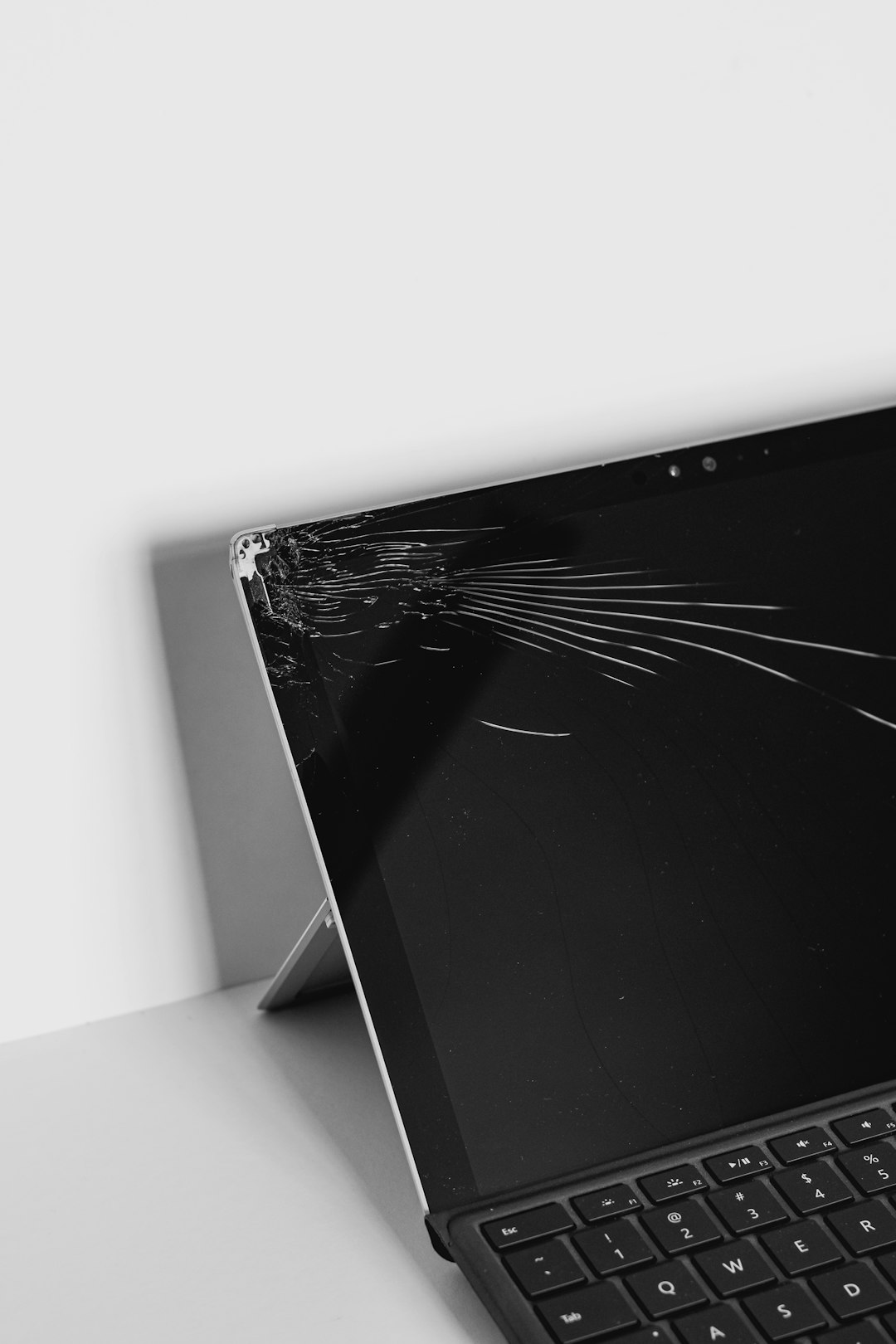
Main Cause: The Surface Pro 4 Display Hardware Issue
The Surface Pro 4 is widely known for a display problem often referred to as Flickergate. This issue is usually related to the screen hardware rather than Windows or an app. The display may begin shaking after the device warms up, and the problem may gradually become more frequent over time.
In many affected units, the internal display panel or related display circuitry becomes unstable under heat. The Surface Pro 4 has a thin design, and heat from the processor and internal components can influence the display assembly. When the hardware begins to fail, software fixes may provide only temporary relief or no improvement at all.
A strong sign of hardware failure is when the screen shakes even before Windows fully loads. If the display flickers in the UEFI firmware screen, the issue is almost certainly not caused by a Windows driver or installed software.
Cause 2: Overheating and Thermal Stress
Heat is one of the most common triggers for Surface Pro 4 screen shaking. Even when the underlying problem is hardware-related, the display may behave normally while the device is cool. After the processor heats up during browsing, streaming, drawing, video calls, or multitasking, the screen may begin to shake.
Overheating can be caused by several conditions:
- Blocked vents or dust buildup
- Heavy background processes
- High screen brightness for long periods
- Using the tablet while charging
- Running demanding apps such as design software, games, or video editors
- Using the device on a blanket, pillow, or other surface that traps heat
Reducing heat may not permanently repair a defective Surface Pro 4 display, but it can delay flickering and make the device usable for longer periods.
Cause 3: Outdated or Corrupted Graphics Drivers
The Surface Pro 4 uses Intel integrated graphics, and display behavior depends heavily on the graphics driver. A faulty, outdated, or corrupted driver can cause flickering, screen tearing, or unstable refresh behavior. This is especially likely if the shaking started after a Windows update, driver update, or system crash.
Driver-related flickering is more likely when the issue appears only inside Windows and does not occur in UEFI. It may also appear when opening specific applications, switching between tablet and desktop mode, waking from sleep, or connecting an external monitor.
Cause 4: Windows Display Settings and Scaling Problems
Windows display settings can sometimes create visual instability. The Surface Pro 4 has a high-resolution PixelSense display, and incorrect scaling, brightness behavior, or refresh settings may lead to unusual display behavior. While this is not the most common cause of severe screen shaking, it is worth checking because it is easy to fix.
Settings that may contribute to the problem include:
- Automatic brightness adjustment
- Incorrect display scaling
- Night light or color filter conflicts
- External monitor display mode conflicts
- Power-saving graphics behavior
Cause 5: Damaged Display Cable or Internal Connection
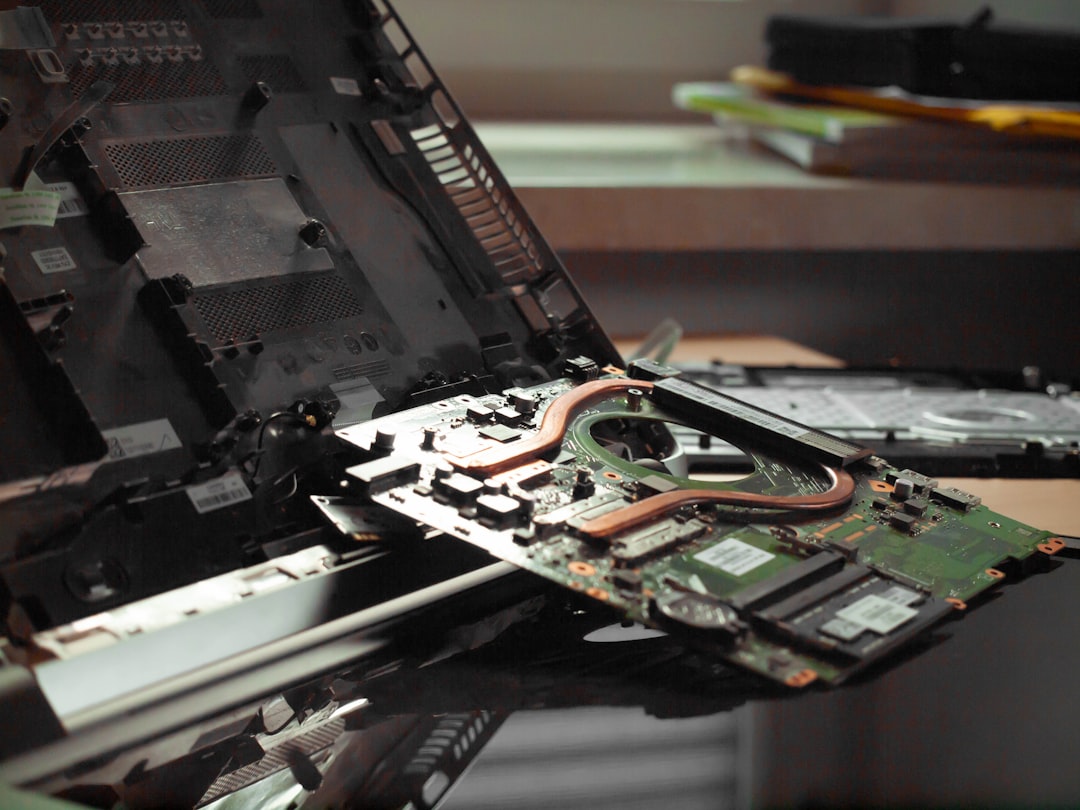
A loose or damaged internal display connection can also cause shaking, flickering, or intermittent lines. The Surface Pro 4 is a compact tablet, so its internal components are tightly packed. Drops, pressure on the screen, swollen battery pressure, or previous repairs may affect the display connection.
If the shaking changes when the device is moved, tapped lightly, or placed at a different angle, a physical connection issue may be involved. However, opening a Surface Pro 4 is difficult and risky because the screen is glued into place. For most owners, internal inspection should be handled by a trained repair technician.
How to Diagnose the Problem
Before replacing parts, the user should determine whether the problem is caused by software or hardware. A careful diagnosis can save time and prevent unnecessary repairs.
1. Check Whether the Screen Shakes in UEFI
The UEFI screen loads outside Windows, so it is a useful test. To enter UEFI on a Surface Pro 4, the user can shut down the device, hold the Volume Up button, then press and release the Power button while continuing to hold Volume Up until the UEFI screen appears.
If the screen shakes in UEFI, the problem is almost certainly hardware-related. If the screen is stable in UEFI but shakes in Windows, software, drivers, or settings may be responsible.
2. Test with an External Monitor
Connecting the Surface Pro 4 to an external monitor can help isolate the problem. If the external display looks normal while the built-in screen shakes, the graphics system is likely still functioning, and the internal display panel is the problem. If both displays flicker, the issue may involve the graphics driver, Windows, or the GPU.
3. Observe Temperature Patterns
The owner should note when the shaking starts. If the display is stable when cold and shakes only after warming up, heat-related hardware failure is likely. A cooling fan, lower brightness, or reduced workload may temporarily improve the situation.
Software Fixes to Try First
Even though the Surface Pro 4 is known for hardware display problems, it is still sensible to try safe software fixes first. These steps may solve driver-related flicker or reduce the problem enough for temporary use.
Update Windows and Surface Firmware
Windows Update often includes Surface firmware, display, and Intel graphics updates. The user should go to Settings > Windows Update and install all available updates. After updating, the device should be restarted fully instead of only put to sleep.
Reinstall the Graphics Driver
A corrupted graphics driver can be removed and reinstalled. In Device Manager, the user can expand Display adapters, select the Intel graphics adapter, and choose to uninstall the device. After restarting, Windows should reinstall the graphics driver automatically. If needed, the latest Surface drivers can also be installed from Microsoft’s official support resources.
Disable Automatic Brightness
Adaptive brightness can sometimes cause flicker-like behavior. The user can open Settings > System > Display and turn off automatic brightness options if available. Keeping brightness at a moderate fixed level may reduce visual instability and lower heat.
Check Power and Performance Settings
Power-saving features may affect graphics behavior. The user can test the device using a different power mode, such as Balanced rather than maximum performance. If the shaking happens mostly while charging, the owner should test the Surface on battery power to see whether heat or power delivery is involved.
Run System File Checks
Corrupted Windows files can cause display problems. A technician or advanced user may run commands such as sfc /scannow and DISM /Online /Cleanup-Image /RestoreHealth from an elevated Command Prompt. These tools repair some system file issues, though they do not fix physical display failure.
Heat Reduction Fixes
If the screen shaking is worse when the Surface Pro 4 gets hot, cooling steps may help. These methods are usually temporary, but they can reduce flickering during important work.
- Lower the screen brightness: A dimmer display produces less heat.
- Close background apps: Fewer active processes reduce processor load.
- Use the device on a hard surface: This improves airflow around the tablet.
- Avoid charging during heavy use: Charging can increase internal temperature.
- Use an external fan: Gentle airflow behind the Surface may delay flickering.
- Keep Windows lean: Removing unnecessary startup apps can reduce heat.
Some owners have used cooling as a workaround for months, but it should not be considered a permanent repair if the display hardware is failing.
When Screen Replacement Is the Real Fix
If the Surface Pro 4 screen shakes in UEFI, worsens with heat, and remains stable only on an external monitor, the internal display assembly is probably failing. In that case, updates and settings changes are unlikely to provide a lasting solution.
A screen replacement may solve the problem, but the cost should be compared with the value of the device. The Surface Pro 4 is an older model, and repair costs can approach the price of a newer used or refurbished Surface. Additionally, the repair is delicate because the screen is bonded to the frame and can crack during removal.
For a business or student who needs a reliable daily device, replacement of the entire unit may be more practical than repairing the screen. For users who only need occasional access, using an external monitor may be a low-cost workaround.
Temporary Workarounds
When immediate repair is not possible, several workarounds may help. The Surface Pro 4 can be connected to an external monitor, keyboard, and mouse and used like a small desktop computer. If the external display remains stable, this setup can extend the device’s usefulness.
Another temporary option is to reduce heat aggressively. The owner may lower brightness, close heavy applications, and use a fan behind the device. These steps do not cure the underlying fault, but they can make the screen usable for short sessions.
What Not to Do
Some risky methods appear in online discussions, but they may cause more damage. The user should avoid pressing hard on the display, heating the device with a hair dryer, freezing the tablet, or opening the Surface without proper tools and experience. Such methods can damage the battery, crack the screen, or create safety hazards.
It is also unwise to ignore signs of a swollen battery. If the screen is lifting, the frame is separating, or the device rocks on a flat surface, the Surface should be powered down and inspected by a professional.
Conclusion
A Surface Pro 4 screen may shake because of software, drivers, display settings, overheating, or internal connection problems. However, the most common serious cause is the well-known Surface Pro 4 hardware display failure, especially when flickering increases as the device warms up. The best first step is to test the screen in UEFI and on an external monitor. If the issue appears outside Windows and only on the built-in display, professional repair, display replacement, or device replacement is usually the most realistic solution.
FAQ
Why does the Surface Pro 4 screen shake after a few minutes?
The screen often starts shaking after a few minutes because heat affects a failing display panel or display circuitry. If the device works when cold but flickers when warm, the problem is likely hardware-related.
Can a Windows update fix Surface Pro 4 screen shaking?
A Windows update can fix driver or software-related flickering, but it usually cannot repair a physical display fault. If the screen shakes in UEFI, Windows updates will not solve the problem.
How can someone tell if the problem is hardware or software?
The user should check the screen in UEFI and test an external monitor. Flickering in UEFI usually indicates hardware failure. A stable external monitor with a shaking built-in display also points to the internal screen.
Is it safe to keep using a Surface Pro 4 with a shaking screen?
It is generally safe if the device has no battery swelling, excessive heat, or physical damage. However, prolonged use may be uncomfortable and the problem may worsen over time.
Does replacing the screen fix the issue permanently?
Screen replacement can fix the issue if the display panel is the failing part. However, because the Surface Pro 4 is older and difficult to repair, the owner should compare repair cost with the cost of replacing the device.
Why does an external monitor work while the Surface screen shakes?
An external monitor uses a separate display output. If it remains stable, the graphics system is probably working, and the built-in Surface display or its internal connection is likely the source of the problem.
Can overheating alone cause the screen to shake?
Overheating can trigger or worsen shaking, but in many Surface Pro 4 units it reveals an underlying hardware defect. Cooling may reduce symptoms temporarily, but it may not be a permanent fix.