
Creating videos with MidJourney is easier than you think. Yes, MidJourney is known for images. But with a few smart steps and extra tools, you can turn those stunning visuals into scroll-stopping videos. You do not need to be a filmmaker. You just need creativity and a clear process.
TLDR: MidJourney creates amazing images, not direct videos. You generate multiple consistent images first. Then you animate them using video tools like Runway or Pika. Keep prompts consistent, upscale smartly, and stitch everything together for smooth motion.
What Is MidJourney and How Does Video Fit In?
MidJourney is an AI image generator. It lives inside Discord. You type a prompt. It gives you beautiful images. Simple.
But here is the twist.
Videos are just moving images. So if you create a series of consistent frames, you can turn them into animation. Think of it like a digital flipbook.
That is the core idea.
You design. You tweak. You animate. Done.
Step 1: Plan Your Video Idea First
Do not open MidJourney yet.
First, decide:
- What is your video’s theme?
- How long should it be?
- Is it cinematic? Cartoon? Realistic?
- Do you want camera movement?
Short videos work best. Start with 5 to 15 seconds.
Create a mini storyboard. Nothing fancy. Just write:
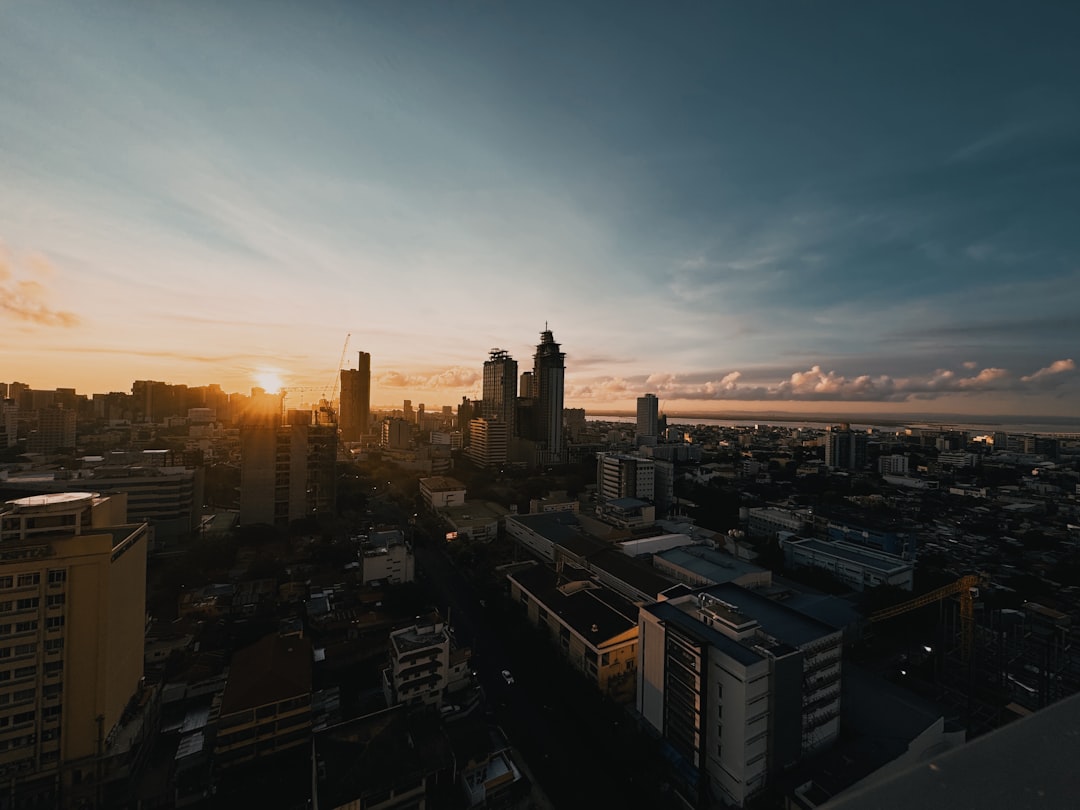
- Scene 1 – A futuristic city at sunrise
- Scene 2 – A flying car passes the camera
- Scene 3 – Close-up of driver smiling
This keeps you focused.
Step 2: Generate Your First Keyframe in MidJourney
Open Discord. Enter the MidJourney channel. Type /imagine and write your prompt.
Example:
Futuristic city at sunrise, cinematic lighting, ultra realistic, 8k, wide angle shot –ar 16:9 –v 6
Always use a widescreen aspect ratio for video. –ar 16:9 is perfect.
Wait for the images to generate. Pick your favorite. Upscale it.
This is your keyframe. Your anchor image.
Step 3: Create Consistent Variations
This is where magic happens.
You need multiple frames that look similar but slightly different.
Use:
- Vary (Subtle) for small movement
- Pan to extend scenes
- Zoom Out for camera pullback effect
Want motion? Describe it in the next prompt.
Example:
Futuristic city at sunrise, flying car moving left to right, cinematic lighting, same environment, consistent style –ar 16:9
Consistency tips:
- Repeat key phrases
- Keep lighting the same
- Mention “same character” if needed
- Use seed numbers to lock variations
The goal is smooth visual transitions.
Step 4: Create All the Frames You Need
For a 5-second clip, you do not need 150 frames.
AI video tools will handle motion between frames.
Create:
- 3 to 6 strong key images per scene
Think of them as anchor points.
Example sequence:
- Wide city shot
- Car entering frame
- Car centered
- Car exiting frame
Export all images in high resolution.
Step 5: Choose a Tool to Animate Your Images
MidJourney does not directly animate yet. So you need a second tool.
Here are popular choices:
| Tool | Best For | Ease of Use | Motion Quality | Price Level |
|---|---|---|---|---|
| Runway | Cinematic AI motion | Easy | Very High | Medium |
| Pika | Quick image to video | Very Easy | High | Free and Paid |
| Kaiber | Stylized animations | Easy | Medium | Medium |
| CapCut | Manual editing and effects | Very Easy | Depends on skill | Free |
If you are a beginner, start with Pika or Runway.
Step 6: Upload and Animate
Upload your first image.
Add a motion prompt like:
Slow cinematic camera pan to the right, soft movement, realistic motion
Keep motion subtle. Big motion can break realism.
Generate the clip.
Repeat for each keyframe or transition.
Step 7: Stitch Everything Together
Now combine all clips.
You can use:
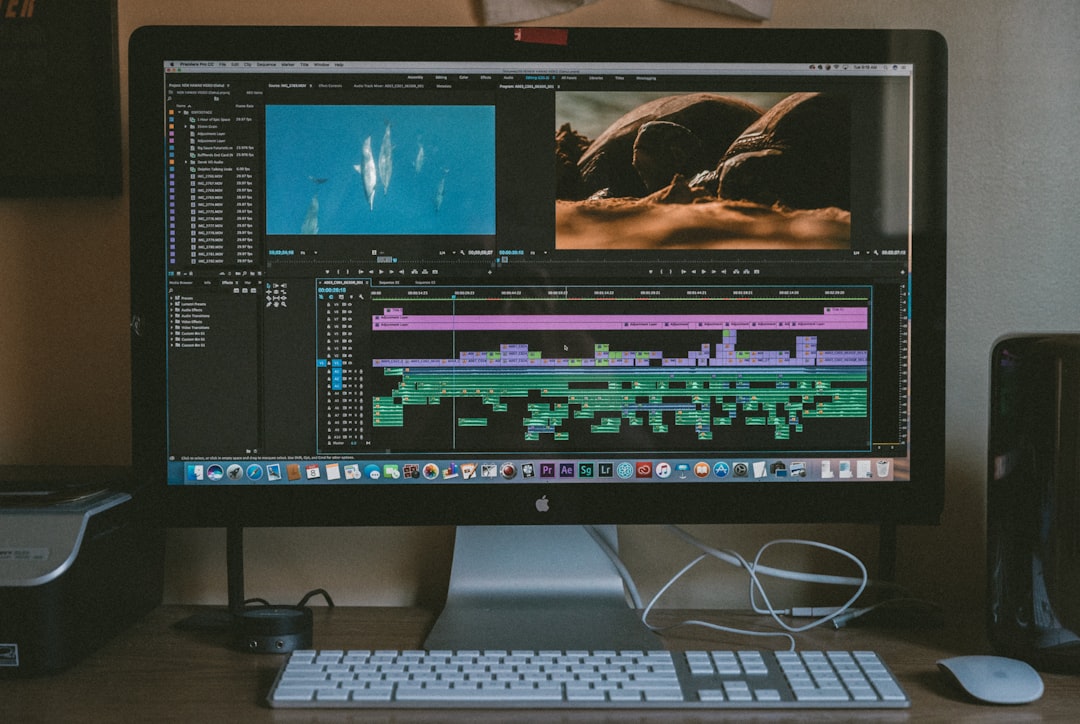
- CapCut
- Premiere Pro
- DaVinci Resolve
Place clips in order.
Add:
- Background music
- Sound effects
- Color grading
- Text overlays
Add subtle transitions. Avoid cheesy effects.
Keep it smooth.
Step 8: Add Camera Motion Effects (Optional Bonus)
Want more drama?
Add digital camera moves like:
- Zoom in
- Zoom out
- Shake effect
- Light flares
Even still images can feel alive with slow zoom and parallax effects.
This trick works great for social media reels.
Step 9: Add Voice or AI Narration
Want storytelling? Add voice.
Use AI voice generators or record your own.
Keep sentences short. Sync voice to motion.
This instantly makes your video feel professional.
Pro Tips for Better MidJourney Videos
Here is where most beginners struggle. So pay attention.
1. Use Detailed Prompts
More detail equals more control.
Include:
- Lighting type
- Camera angle
- Lens type
- Mood
- Time of day
2. Keep Characters Consistent
If your video includes a person, describe them the same way every time.
Example:
young woman with short silver hair, red jacket, confident expression
Copy and paste that description in every prompt.
3. Use Seed Numbers
Seed numbers help keep style similar.
Add –seed 12345 to your prompt.
This locks visual randomness.
4. Keep Motion Slow
AI struggles with extreme movement.
Slow and cinematic always looks better.
Example Workflow From Start to Finish
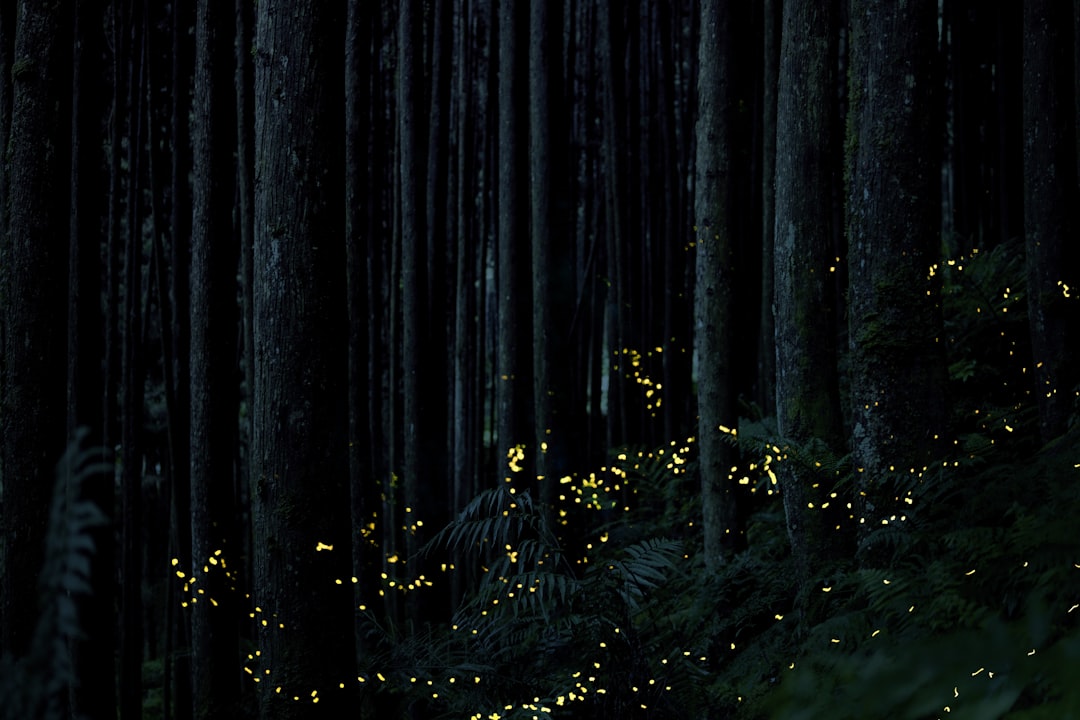
Let us say you want a 10-second fantasy forest clip.
Step 1: Generate main forest image.
Step 2: Create variation with glowing particles.
Step 3: Add magical creature in next frame.
Step 4: Animate each image with slow camera push.
Step 5: Combine clips. Add soft fantasy music.
That is it. You now have a cinematic fantasy scene.
Common Mistakes to Avoid
- Changing art style mid-video
- Using different aspect ratios
- Adding too much motion
- Low-resolution exports
- Forgetting sound design
Consistency is everything.
How Long Does It Take?
Your first video might take 2 to 3 hours.
After practice?
30 to 60 minutes.
Most time is spent tweaking prompts. Not editing.
Is This Good for Social Media?
Absolutely.
MidJourney videos perform great on:
- TikTok
- Instagram Reels
- YouTube Shorts
Keep them short. Add captions. Start with a strong visual hook.
Can You Monetize This?
Yes.
People use MidJourney videos for:
- YouTube automation
- Story channels
- Ads
- Music visuals
- Client work
You can sell cinematic clips. Create short films. Or build a themed channel.
Final Thoughts
MidJourney is not just an image tool. It is a creative engine.
When you combine it with AI animation tools, you unlock video creation without cameras.
No actors. No locations. No expensive gear.
Just imagination and the right steps.
Start small. Stay consistent. Keep motion subtle.
Your first AI film is just a few prompts away.