
If your Nintendo Switch is acting up, preparing for resale, or you simply want a completely fresh start, performing a factory reset can feel like pressing the ultimate reset button. Whether you own the original Switch, the OLED model, or the Switch Lite, the process is straightforward—but there are important differences between reset options that you need to understand before tapping that confirm button.
TLDR: A factory reset on Nintendo Switch erases user data and restores the console to its original settings. You can choose between initializing while keeping save data or fully wiping everything. Make sure to back up save files through Nintendo Switch Online if possible. The reset process takes only a few minutes but permanently deletes data not backed up.
What Does a Factory Reset Actually Do?
A factory reset—officially called Initialize Console—restores your Switch to its original settings as if it just came out of the box. This means:
- User accounts are removed
- Downloaded games are deleted
- Saved data is erased (unless backed up)
- System settings are reset
- Parental controls are cleared
It does not remove system updates, meaning your console will still run the latest installed firmware.
Before proceeding, it’s crucial to understand that once the reset is completed, most data cannot be recovered without a previous backup.
When Should You Factory Reset Your Switch?
There are several common scenarios where a factory reset makes sense:
- Selling or gifting your console
- Fixing persistent software glitches
- Resolving corrupted data errors
- Removing all parental controls
- Starting over with a clean system
If you’re troubleshooting performance issues, consider restarting the system first. A factory reset should be your last resort—not your first step.
Before You Reset: Important Preparations
Preparation is key. Here’s what you need to do before performing a factory reset:
1. Back Up Your Save Data
If you’re a Nintendo Switch Online subscriber, you can back up compatible save data to the cloud.
To manually check your backup status:
- Go to System Settings
- Select Data Management
- Choose Save Data Cloud Backup
Games like Animal Crossing: New Horizons require special backup handling, so verify individually if you play it.
2. Deregister as Primary Console (Optional but Recommended)
If you plan to sell your Switch, deregistering it ensures the next owner won’t affect your digital game access.
This can be done via:
- Nintendo eShop settings on the console
- Your Nintendo Account website
3. Remove microSD Card
Physically remove the microSD card before resetting. This protects screenshots and video captures stored separately.
Types of Nintendo Switch Resets
Not all resets are the same. Nintendo provides multiple options depending on your goal.
| Reset Option | Deletes User Data | Deletes Save Data | Best For |
|---|---|---|---|
| Restart | No | No | Minor glitches |
| Initialize Console | Yes | Yes | Selling or full reset |
| Initialize Without Deleting Save Data | Yes | No | System troubleshooting |
| Maintenance Mode Initialization | Yes | Optional | System won’t boot properly |
How to Factory Reset from System Settings
This is the most common method and works if your console is functioning normally.
Step-by-step instructions:
- Turn on your Nintendo Switch.
- Select System Settings from the Home Menu.
- Scroll down and choose System.
- Select Formatting Options.
- Tap Initialize Console.
- Read the warning message carefully.
- Select Next, then Initialize.
The system will restart and begin the reset process. This typically takes several minutes.
How to Reset Without Deleting Save Data
If your system is malfunctioning but you want to keep save files, this alternative may help:
- Go to System Settings.
- Select System.
- Tap Formatting Options.
- Choose Initialize Console Without Deleting Save Data.
This removes user accounts and settings but preserves local save files.
Important: Once new users are created, previous save data will not automatically re-link unless you reconnect the original Nintendo Account.
Factory Reset Using Maintenance Mode
If your Switch won’t load properly, freezes on startup, or exhibits severe software issues, you may need to use Maintenance Mode.
To access Maintenance Mode:
- Power off the console completely.
- Hold down the Volume Up (+) and Volume Down (-) buttons.
- While holding them, press the Power button.
- Keep holding the volume buttons until the Maintenance Menu appears.
You’ll see two options:
- Initialize Console Without Deleting Save Data
- Initialize Console
Select the appropriate option and follow on-screen instructions.
What Happens After the Reset?
After initialization:
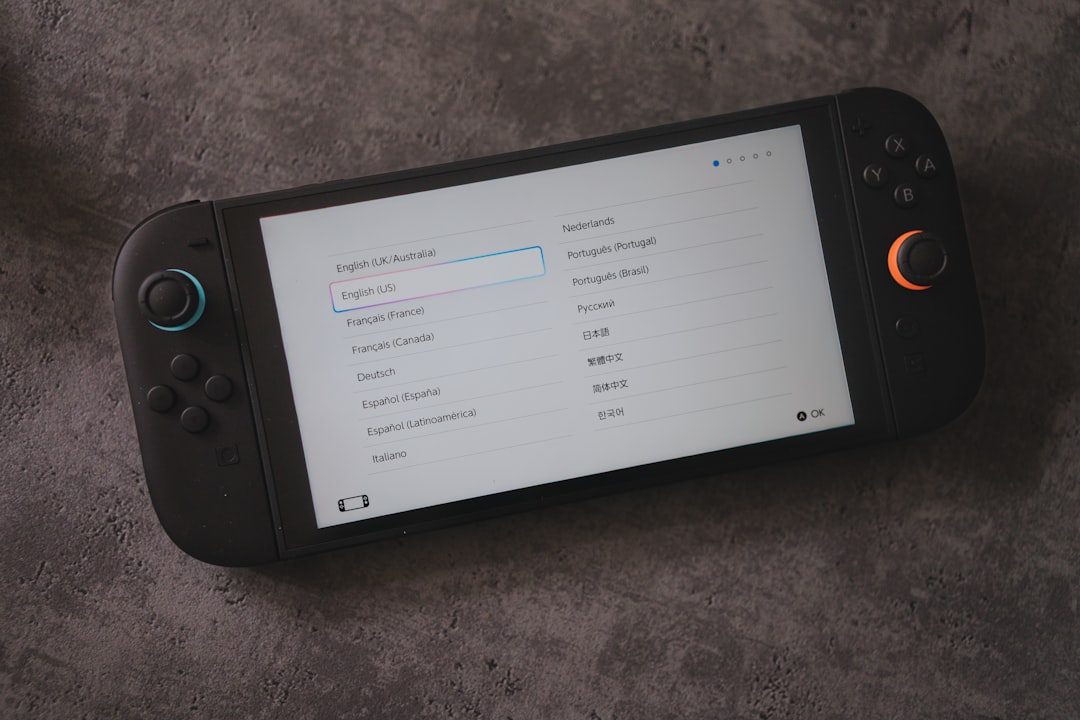
- The console restarts to the setup screen.
- You’ll choose language and region.
- You’ll connect to WiFi again.
- You’ll link a Nintendo Account.
Digital games can be re-downloaded from the Nintendo eShop if you sign in using your original account.
Physical cartridges, of course, will work immediately.
Common Questions About Factory Resetting
Will I lose my digital games?
No. Purchased games are linked to your Nintendo Account. Once you sign back in, you can redownload them.
Does a factory reset remove parental control restrictions?
Yes. All device-level parental controls are removed during initialization.
Can a banned Switch be unbanned with a reset?
No. A factory reset does not remove online bans associated with the console’s hardware.
How long does the process take?
Typically 3–10 minutes depending on storage size and system condition.
Switch OLED vs. Switch Lite: Any Differences?
The reset process is identical across all 2026 Switch models:
- Original Nintendo Switch
- Nintendo Switch OLED
- Nintendo Switch Lite
The only difference is that the Switch Lite lacks detachable Joy-Con controllers, which doesn’t affect reset procedures.
Troubleshooting Reset Problems
If something goes wrong during reset:
- Ensure the battery is charged above 50%.
- Keep the console plugged in during initialization.
- Avoid interrupting the process.
- If frozen, hold the Power button for 12 seconds to force shutdown.
If the console remains stuck, contacting Nintendo Support may be necessary.
Final Thoughts
Knowing how to factory reset your Nintendo Switch is an essential skill for any owner in 2026. Whether you’re solving technical issues, protecting your privacy before selling, or simply craving a fresh gaming start, the process is straightforward and safe when done correctly.
The biggest mistake people make is failing to back up save data beforehand. Take a few extra minutes to secure your progress—especially in games where you’ve invested dozens (or hundreds) of hours.
With the right preparation, a factory reset can feel less like a loss and more like a clean slate—ready for your next adventure in Hyrule, Paldea, or beyond.