
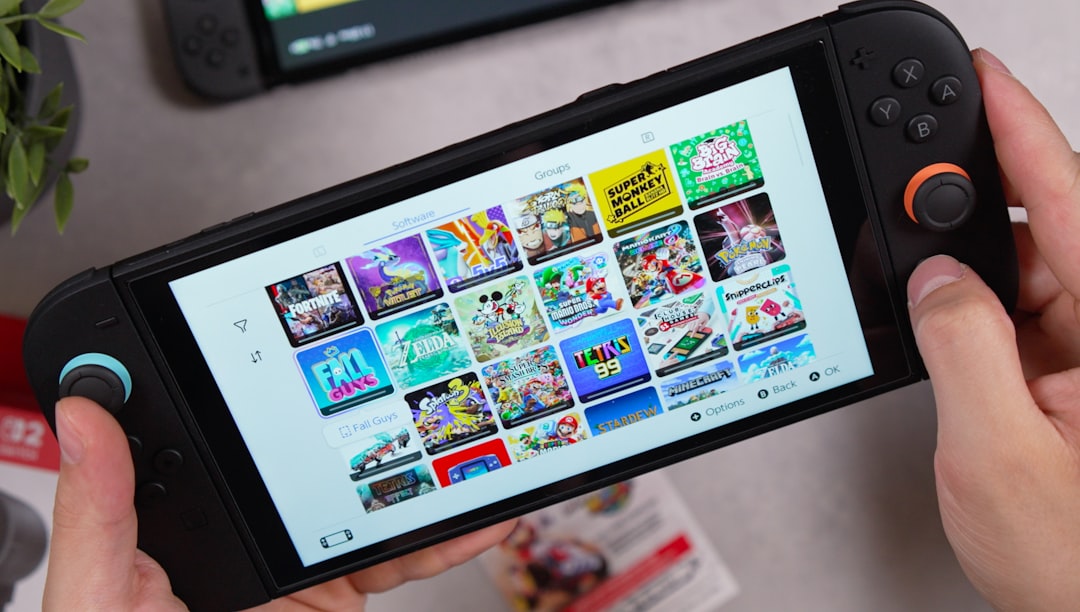
Joining a matchmaking key on Nintendo Switch is a straightforward process once you understand where to look and what each game requires. Whether you are teaming up with friends in a private lobby or entering a code for a competitive match, the system is designed to be accessible but can feel confusing if you are new to online play. This guide explains the process step by step, clarifies common problems, and outlines important requirements so you can connect quickly and reliably.
TLDR: To join a matchmaking key on Nintendo Switch, you need an active Nintendo Switch Online membership, a stable internet connection, and the correct matchmaking code from a friend or host. Open the specific game, navigate to its online or multiplayer section, and select the option to enter a lobby code or matchmaking key. Enter the code exactly as provided and confirm to join the session. If it does not work, verify your subscription status, internet connection, and code accuracy.
While Nintendo Switch does not use a universal “matchmaking key” system across all titles, many popular games feature private lobby codes, room IDs, or matchmaking keys that function similarly. The precise terminology varies, but the overall process remains consistent. Understanding the fundamentals ensures you can join any supported game with confidence.
What Is a Matchmaking Key?
A matchmaking key is a unique code or lobby ID that allows players to join a specific online session. Instead of relying on random matchmaking, this system gives players control over who enters the match.
Common names for matchmaking keys include:
- Lobby Code
- Room ID
- Private Match Code
- Friend Room Code
These codes are widely used in games like Mario Kart 8 Deluxe, Super Smash Bros. Ultimate, Splatoon 3, Minecraft, and many third-party multiplayer titles.
Requirements Before Joining a Matchmaking Key
Before attempting to join a private session, make sure the following requirements are met:
1. Nintendo Switch Online Membership
Most multiplayer games require an active Nintendo Switch Online subscription. Without it, you cannot access online lobbies in supported titles.
To check your membership:
- Open the Nintendo eShop.
- Select your profile icon in the top-right corner.
- Review your subscription status under Nintendo Switch Online.
2. Stable Internet Connection
A stable connection is essential. To verify your internet status:
- Go to System Settings.
- Select Internet.
- Choose Test Connection.
If your NAT type is too restrictive (such as NAT Type D), you may experience difficulty joining private lobbies.
3. Correct Matchmaking Code
Matchmaking keys are typically case-sensitive and must be entered exactly as provided. Even a small typo can prevent access.
Step-by-Step: How to Join a Matchmaking Key
The general process is similar across most Nintendo Switch games. Follow these steps carefully:
Step 1: Launch the Game
From the Nintendo Switch home screen:
- Select the appropriate game icon.
- Press A to launch.
Step 2: Navigate to Online Multiplayer
Each game structures its menus differently, but typically you will:
- Select Online Play.
- Choose Multiplayer or Play Online.
- Look for an option labeled Private Match, Join Room, or Enter Code.
Step 3: Select “Join” or “Enter Code”
Once you are in the multiplayer section:
- Choose Join Room or similar wording.
- Select Enter Lobby Code if prompted.
Step 4: Enter the Matchmaking Key
Using the on-screen keyboard:
- Carefully type the code provided by the host.
- Double-check spelling and capitalization.
- Confirm your entry.
Step 5: Join the Session
If the code is valid and the session is active, you will automatically be placed in the lobby. From there, wait for the host to begin the match.
Example: How It Works in Popular Games
To make this process clearer, here are examples from well-known Nintendo Switch titles.
Mario Kart 8 Deluxe
- Select Online Play.
- Choose Tournaments or join via friends list.
- Enter the tournament code if required.
Super Smash Bros. Ultimate
- Go to Online.
- Select Battle Arenas.
- Choose Join Arena.
- Enter the arena ID and password if prompted.
Minecraft (Nintendo Switch Version)
- Select Play.
- Navigate to Friends.
- Choose Add Friend or enter a Realm invite code.
Although menu labels differ, the structure remains consistent: access online mode, choose private match, enter the code.
Troubleshooting Common Problems
If you are unable to join a matchmaking key, consider the following solutions:
Code Not Working
- Verify the code with the host.
- Ensure there are no extra spaces.
- Check for correct uppercase and lowercase letters.
Session Full
Some private lobbies have player limits. If full:
- Wait for a player to leave.
- Ask the host to expand player capacity if possible.
Unable to Connect
If you receive connection errors:
- Restart your Nintendo Switch.
- Reset your router.
- Move closer to your WiFi source.
NAT Type Issues
Restrictive NAT types can prevent you from joining private sessions. Moderate (Type B) is usually sufficient, while Type A is ideal.
Contact your internet service provider if problems persist.
Security and Privacy Considerations
When joining matchmaking keys, exercise caution:
- Only join sessions hosted by people you trust.
- Avoid sharing personal information in voice or text chat.
- Be cautious when entering publicly shared codes.
While Nintendo maintains moderation systems, private lobbies can still expose players to inappropriate behavior if codes are widely distributed.
Using the Friends List Instead of a Code
In some cases, you may not need a matchmaking key at all. If you and the host are Nintendo Switch friends:
- Select your profile icon from the home screen.
- Navigate to Add Friend to exchange friend codes.
- After becoming friends, join directly from the game’s online menu.
This method can be more convenient because it eliminates manual code entry.
Best Practices for Hosting and Joining
Whether you are the host or participant, consider these best practices:
- Share codes privately whenever possible.
- Start the session only after all players confirm they have joined.
- Use voice chat apps or messaging platforms to coordinate.
- Keep software updated to avoid compatibility errors.
System updates and game patches can occasionally prevent older versions from connecting together.
Frequently Asked Questions
Do all Nintendo Switch games support matchmaking keys?
No. Some games rely entirely on random matchmaking or friend-based joining systems. Always consult the game’s online features.
Is Nintendo Switch Online required for free-to-play games?
Many free-to-play titles, such as Fortnite, do not require a subscription. However, most premium multiplayer games do.
Can I reuse the same matchmaking code?
This depends on the game. Some codes are temporary and expire after the session closes.
Final Thoughts
Joining a matchmaking key on Nintendo Switch is neither complicated nor risky when done correctly. The process mainly involves ensuring you have an active Nintendo Switch Online subscription, navigating to the game’s online multiplayer menu, and entering the provided code accurately. Most connection issues stem from simple input errors or unstable internet connections.
By following the structured steps outlined above, you can join private matches quickly and with confidence. Whether you are teaming up with friends for a casual session or participating in organized competitive play, understanding how matchmaking keys work gives you seamless access to Nintendo Switch’s online ecosystem.
Approach the process carefully, verify your information, and you will find the experience both reliable and straightforward.