
Apple’s HomePod is designed to work seamlessly within the Apple ecosystem, but there are times when a reset becomes necessary. Whether you are troubleshooting persistent connectivity issues, preparing the device for sale, or setting it up in a new home, knowing how to properly reset your HomePod is essential. The reset process varies slightly depending on the model you own, but each method is straightforward when performed correctly.
TLDR: Resetting a HomePod can fix software glitches, remove it from your Apple ID, or prepare it for resale. Most resets can be completed through the Home app on your iPhone, iPad, or Mac. If the device is unresponsive, you can perform a manual reset directly on the HomePod itself. The exact steps differ slightly between HomePod (1st generation), HomePod (2nd generation), and HomePod mini.
When Should You Reset Your HomePod?
A reset should not be your first troubleshooting step, but it is appropriate in the following situations:
- Persistent connectivity issues that are not resolved by restarting your router or device
- Unresponsive controls or Siri failures
- Problems adding the device to the Home app
- Transferring ownership or selling the device
- Removing the HomePod from your Apple ID
Before performing a factory reset, try a simple restart. Unplug the HomePod, wait 10 seconds, then plug it back in. If the issue persists, proceed with the reset instructions below.
Resetting HomePod Using the Home App (All Models)
The easiest and recommended method is through the Home app on your iPhone, iPad, or Mac. This method works for:
- HomePod (1st generation)
- HomePod (2nd generation)
- HomePod mini
Steps to Reset Using iPhone or iPad
- Open the Home app.
- Press and hold the HomePod icon.
- Scroll down and tap Reset HomePod.
- Select Remove Accessory.
- Confirm your choice.
Steps to Reset Using Mac
- Open the Home app on macOS.
- Double-click your HomePod.
- Scroll down and click Settings.
- Select Reset HomePod.
- Click Remove Accessory to confirm.
After confirmation, the HomePod will reset to factory settings and restart automatically. It will be removed from your Apple ID and Home app.
How to Manually Reset HomePod (Without the Home App)
If your HomePod is not responding or does not appear in the Home app, you can perform a manual hardware reset. The process differs slightly depending on your model.
HomePod (1st and 2nd Generation)

- Unplug the HomePod from power.
- Wait 10 seconds.
- Plug it back in.
- Wait another 10 seconds.
- Press and hold your finger on the top touch surface.
- Continue holding until the spinning white light turns red.
- Keep holding until you hear three beeps.
- Release your finger.
The HomePod will reset and restart. This process removes all settings and restores factory defaults.
HomePod mini
The HomePod mini uses a USB-C power adapter, but the reset method is nearly identical:
- Unplug the USB-C cable from the HomePod mini.
- Wait 10 seconds.
- Plug it back in.
- Wait another 10 seconds.
- Press and hold the top of the device.
- Wait for the orange or red spinning light.
- Continue holding until you hear three beeps.
Once complete, the device is ready for new setup.
Resetting HomePod Using a Computer (HomePod mini Only)
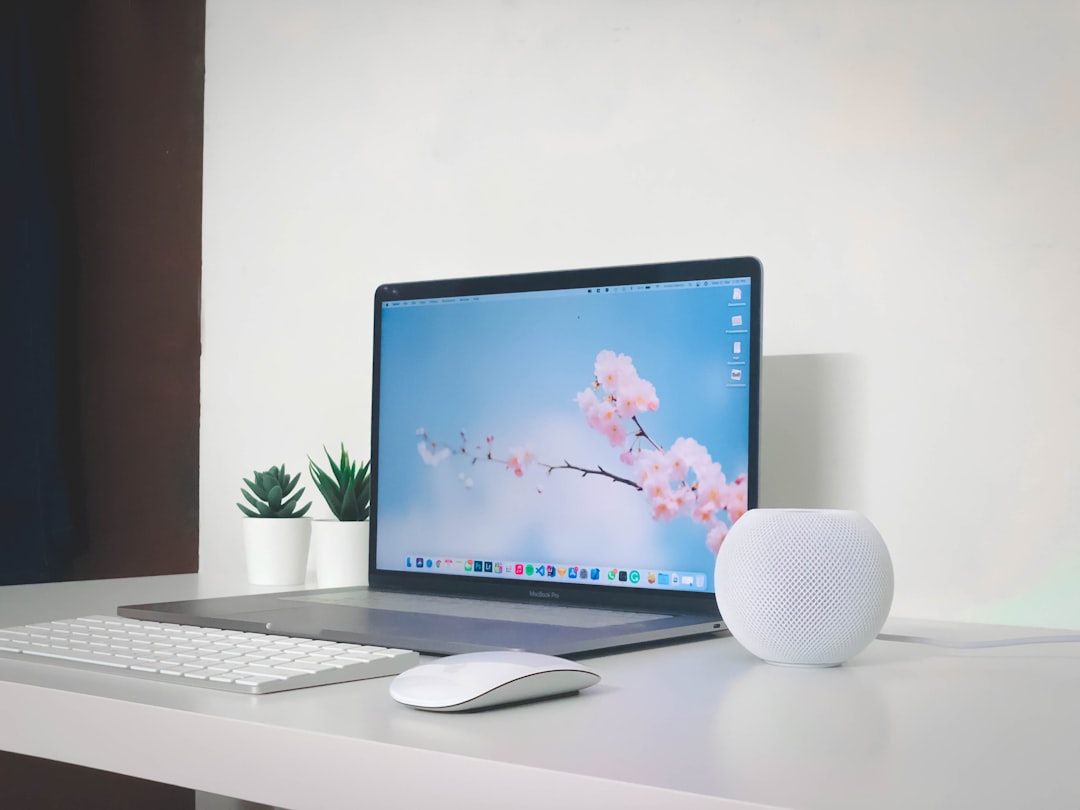
If the HomePod mini becomes unresponsive, you can restore it using a Mac or Windows PC. This option is particularly useful if the firmware is corrupted.
What You Need
- A Mac with macOS Catalina or later, or a Windows PC with iTunes installed
- A USB-C cable
Steps
- Connect the HomePod mini to your computer using a USB-C cable.
- Open Finder (Mac) or iTunes (Windows).
- Select the HomePod when it appears under Locations.
- Click Restore HomePod.
- Wait for the process to complete.
This method reinstalls the latest firmware and fully restores factory settings.
Comparison Chart: Reset Methods by Model
| Model | Home App Reset | Manual Reset | Computer Restore |
|---|---|---|---|
| HomePod (1st Gen) | Yes | Yes | No |
| HomePod (2nd Gen) | Yes | Yes | No |
| HomePod mini | Yes | Yes | Yes |
What Happens After a Reset?
After a factory reset:
- The HomePod is removed from your Apple ID.
- All Wi-Fi settings are erased.
- Siri personalization data is deleted.
- HomeKit automations are removed.
- The device returns to its original out-of-box state.
You will need to set it up again as if it were new. Simply bring your unlocked iPhone near the HomePod and follow the on-screen setup instructions.
Common Mistakes to Avoid
Although resetting a HomePod is simple, users often encounter problems due to avoidable errors.
- Not waiting long enough between unplugging and reconnecting power.
- Removing your finger too early during a manual reset.
- Forgetting Apple ID credentials, which may complicate reactivation.
- Resetting instead of restarting when minor issues could have been resolved more easily.
If you plan to sell or give away your HomePod, always verify that it no longer appears in your Home app after the reset.
Troubleshooting After a Failed Reset
If the reset does not complete as expected:
- Ensure the device has stable power.
- Confirm your iPhone or iPad is updated to the latest iOS version.
- Restart your Wi-Fi router.
- Attempt the reset process again carefully, following timing instructions.
If problems persist, contacting Apple Support may be necessary. Hardware faults are rare but possible, particularly in older first-generation models.
Is Resetting Safe?
Yes. A factory reset is a standard, built-in feature designed by Apple. It does not damage the speaker or shorten its lifespan. However, because it erases all data and settings, it should only be done when necessary.
For minor glitches, a simple restart is typically sufficient. A full reset is recommended only for persistent problems or ownership transfer.
Final Thoughts
Resetting your HomePod, regardless of the model, is a straightforward process when performed carefully. The Home app method is the simplest and most reliable option for most users. When the device is unresponsive, a manual reset or computer restore provides an effective backup solution.
By following the correct procedure for your specific model, you can resolve software issues, protect your personal data, and ensure the device is ready for a fresh setup. Taking a structured, informed approach will help maintain your HomePod’s performance and extend its usability for years to come.