
Noticing a strange dark patch on your screen? Or maybe a shadow that just won’t go away? You’re not alone. Screen shadow problems are common. They can show up on phones, laptops, TVs, and monitors. The good news? Most of the time, they can be fixed.
TLDR: Screen shadows can be caused by software glitches, stuck pixels, backlight problems, or physical damage. Start with simple fixes like restarting your device or adjusting brightness settings. If that fails, try pixel repair tools or a factory reset. In more serious cases, you may need a screen or backlight replacement.
Let’s break it down in a fun and simple way.
What Is a Screen Shadow?
A screen shadow is any dark area, blurry patch, or ghost image that sticks around on your display. It might look like:
- A darker spot in one corner
- A faded image burned into the screen
- A vertical or horizontal gray line
- A cloudy or uneven backlight
Sometimes it’s faint. Sometimes it’s very noticeable. Either way, it’s annoying.
What Causes Screen Shadow Problems?
There isn’t just one reason. Several things can cause screen shadows. Here are the most common ones.
1. Image Retention (Screen Burn-In)
This happens when a static image stays on your screen for too long. Think navigation bars, logos, or game HUDs. The screen “remembers” part of that image.
It’s more common on:
- OLED screens
- AMOLED displays
- Older plasma TVs
The shadow you see is often a faint outline of something that used to be there.
2. Backlight Problems
LCD screens use a backlight. If parts of the backlight fail, you get:
- Dark areas
- Uneven brightness
- Cloudy patches
This can happen from age or hardware damage.
3. Stuck or Dead Pixels
Pixels are tiny dots that make up your display. If they get stuck, they may stay one color. A cluster of them can look like a shadow.
4. Software Glitches
Sometimes, the issue is not physical at all. A buggy update or graphics error can create temporary shadows or ghosting.
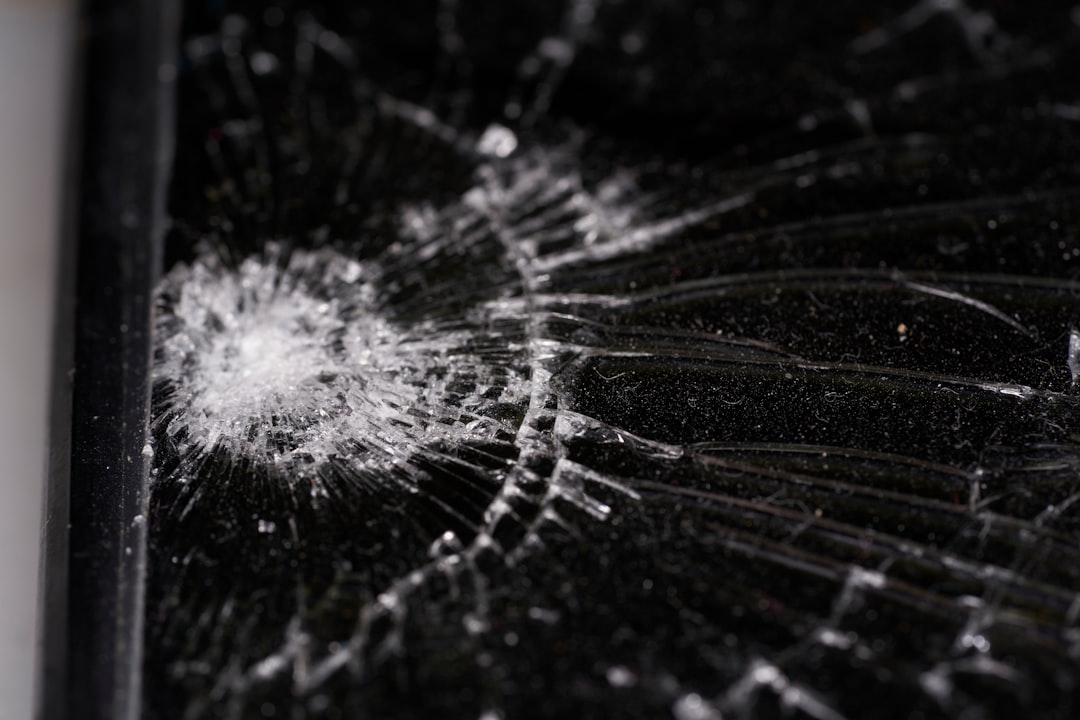
5. Physical Pressure or Damage
Did you sit on your phone? Close your laptop with something inside? Drop your device?
Pressure can damage the internal layers. That damage often shows up as dark spots or bleeding shadows.
How to Fix Screen Shadow Problems
Now the important part. Let’s fix it.
Step 1: Restart Your Device
Yes, the classic solution.
Restarting can fix:
- Software glitches
- Temporary ghosting
- Display driver issues
It’s quick. It’s easy. Always start here.
Step 2: Adjust Brightness and Display Settings
Sometimes shadows are just uneven brightness settings.
Try this:
- Turn off auto brightness
- Adjust brightness manually
- Toggle dark mode on and off
- Reset display settings to default
On some devices, enabling “night mode” can exaggerate shadow effects. Turn it off and compare.
Step 3: Play a Pixel Fixing Video
If you suspect stuck pixels or light image retention, try a pixel refresher video.
These videos:
- Flash rapid colors
- Cycle pixels quickly
- Help “unstick” pixel states
Play it in full screen mode. Let it run for 30 minutes to a few hours.
This works best for minor issues. It won’t fix serious hardware damage.
Step 4: Run Built-In Screen Tools
Some devices have built-in repair tools.
- OLED TVs often have a “Pixel Refresh” option
- Some Android phones include screen calibration tools
- Graphics control panels on PCs may allow recalibration
Check your display settings menu. You might be surprised.
Step 5: Update or Reinstall Display Drivers
If you’re using a PC or laptop, outdated drivers can cause display weirdness.
Here’s what to do:
- Go to Device Manager
- Find Display Adapters
- Update the driver
- Restart your computer
If updating doesn’t help, try uninstalling and reinstalling the driver.
Step 6: Factory Reset (Last Software Option)
If you think it’s software but nothing else worked, a factory reset might fix it.
Warning: This erases your data. Back up everything first.
If the shadow remains after a reset, it’s likely hardware.
When It’s a Hardware Problem
If none of the simple fixes worked, you may be dealing with hardware damage.
Common hardware issues include:
- Failing backlight strips
- Damaged OLED pixels
- Internal pressure marks
- Liquid damage
Here’s a quick comparison of your options.
Repair Options Comparison
| Solution | Best For | Cost | Difficulty | Effectiveness |
|---|---|---|---|---|
| Restart Device | Software glitches | Free | Very Easy | Low to Medium |
| Pixel Fix Video | Stuck pixels, mild burn in | Free | Easy | Medium |
| Driver Update | PC display bugs | Free | Easy | Medium |
| Screen Replacement | Physical or backlight damage | Moderate to High | Hard | High |
| Professional Repair | Severe hardware problems | High | Very Easy for you | High |
How to Prevent Screen Shadows
Prevention is easier than repair. Here are simple habits that help a lot.
Avoid Static Images
- Use auto hide navigation bars
- Enable screen timeout
- Avoid leaving maps or games paused for hours
Lower Brightness
High brightness increases wear. Especially on OLED screens.
Keep it at a comfortable but not maxed level.
Use Dark Mode Wisely
On OLED screens, dark mode reduces pixel wear.
But don’t keep bright static icons on screen all day.
Don’t Press Hard on the Screen
Screens are not meant to handle pressure.
Avoid:
- Pushing hard while cleaning
- Carrying your phone in a tight back pocket
- Closing laptops with objects inside
Is It Worth Repairing?
This depends on your device.
Ask yourself:
- How old is the device?
- How bad is the shadow?
- Does it affect daily use?
- What is the repair cost compared to replacement?
If it’s a small shadow on an old phone, it may not be worth fixing.
If it’s a large dark patch on a new TV, repair makes more sense.
Quick Self-Test
Want to check the severity?
Try this:
- Open a plain white image in full screen.
- Then open a plain black image.
- Then open red, green, and blue screens.
If the shadow appears across all colors, it’s likely hardware.
If it changes or disappears, it might be software.
Final Thoughts
Screen shadow problems are frustrating. But they are usually not mysterious.
Start simple. Restart. Adjust settings. Try pixel refresh tools.
If nothing works, it’s probably hardware. At that point, you can decide whether to repair or replace.
The key is not to panic. Most screen shadows start small. And many can be improved or managed with a few easy steps.
Your screen should be bright. Clear. Shadow free.
Now you know how to make that happen.