
Many users have experienced display issues with their Soyo monitors, from minor inconveniences such as color distortions to complete screen blackouts. While some of these problems are related to faulty hardware, others can be resolved with simple troubleshooting steps. This article explores the common issues faced by Soyo monitor users and provides practical solutions to identify and fix them.
TLDR (Too long, didn’t read):
If your Soyo monitor exhibits problems like no display, flickering, or distorted images, it might be due to loose cables, incorrect settings, driver issues, or hardware malfunction. Start with basic troubleshooting like cable checks and display settings adjustments before resorting to technical fixes or replacements. Many issues can be easily resolved without professional help. Use this guide to systematically identify and repair common Soyo monitor problems.
Common Soyo Monitor Display Issues
Soyo monitors are generally reliable, but users have reported several recurring issues. These problems often include:
- No signal detected even though the monitor is powered on
- Screen flickering or intermittent blackouts
- Dead pixels or color distortion
- Backlight bleeding or uneven brightness
- A completely unresponsive display
Sometimes, these problems are linked to poor quality components used in older Soyo models. In other cases, software conflicts, outdated drivers, or improper connections are the culprits.
Step-by-Step Troubleshooting Guide
1. Check All Cable Connections
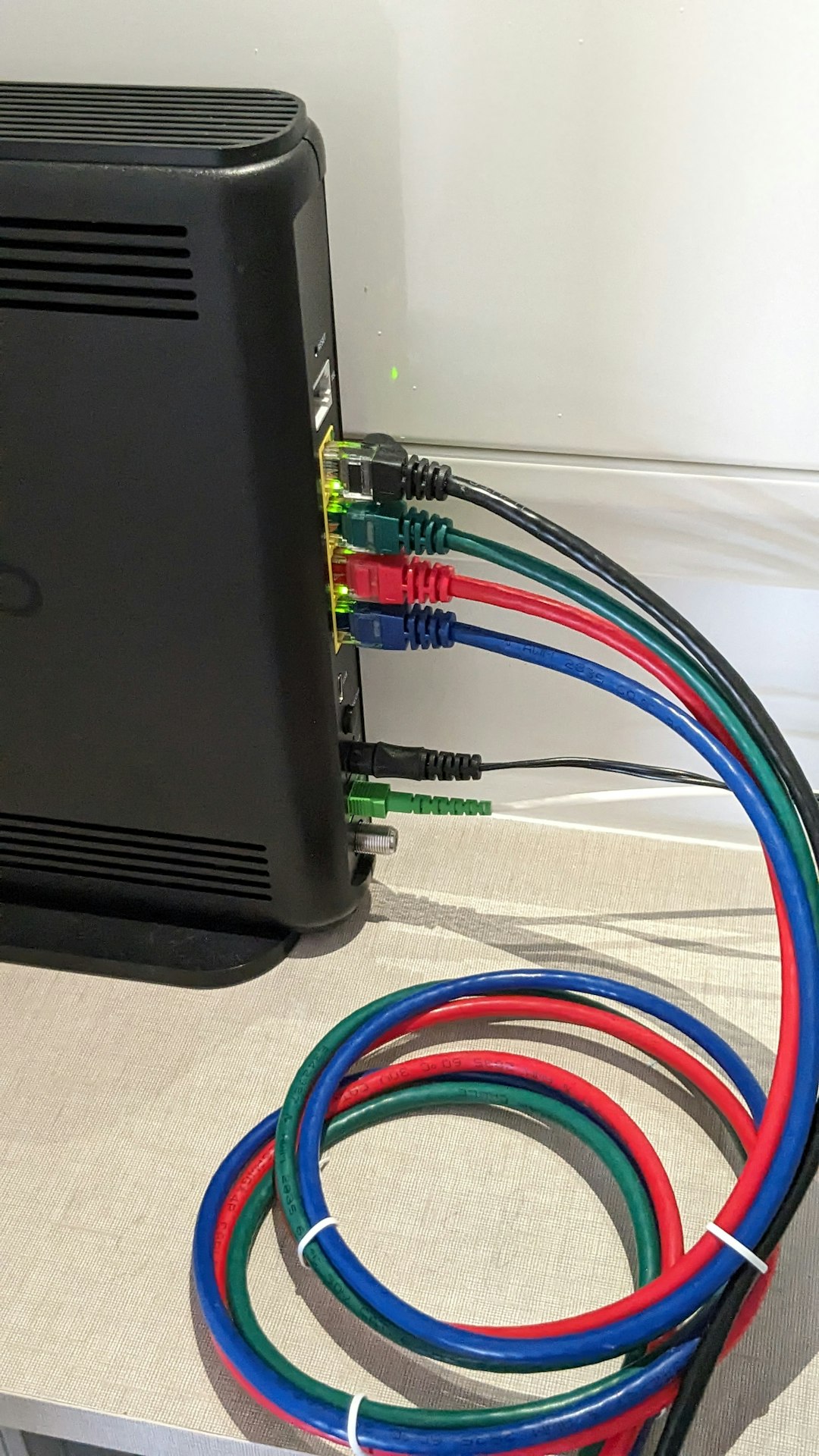
The first and simplest step is to check that all video cables and power cords are securely connected. Users often overlook loose or worn-out HDMI, DisplayPort, or VGA cables, which can cause intermittent or absent signals.
Check for:
- Frayed or broken wires on video and power cords
- Correct video input selected on the monitor
- Try replacing the cable with a known working one
2. Test the Monitor on Another Device
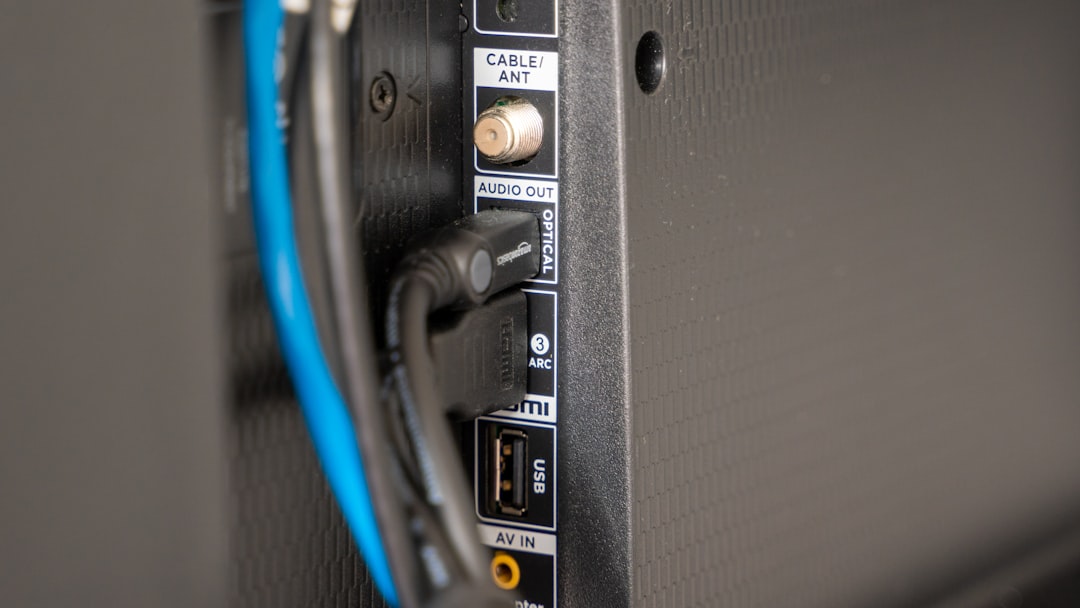
To isolate whether the issue lies with the monitor or the connected device (such as a PC or laptop), try connecting the Soyo monitor to another computer or device. If it works fine on the new device, the problem may lie in the first system’s GPU or settings.
3. Adjust Display Settings
Incorrect display resolution or refresh rate settings can cause screen flickering or complete blackouts on a Soyo monitor. Make sure the GPU is outputting a compatible resolution and refresh rate using the steps below:
- Right-click on the desktop and choose Display Settings
- Select the correct monitor if multiple are connected
- Set resolution to native resolution of the Soyo monitor
- Adjust refresh rate under Advanced Display Settings
4. Inspect Graphics Driver Status
Outdated or corrupted drivers can prevent proper communication between your system and the monitor.
To update or reinstall drivers:
- Open Device Manager
- Expand Display Adapters
- Right-click on your GPU and select Update driver
- Choose Search automatically for drivers or install from the GPU manufacturer’s website
5. Perform Power Cycle
If your Soyo monitor shows no sign of functioning, a power cycle can help:
- Turn off the monitor and unplug it
- Wait at least 60 seconds
- Press and hold the power button (while unplugged) for 10–15 seconds
- Reconnect and power it on
This clears any static electricity buildup that may be interfering with operation.
6. Look for Physical Damage or Faulty Components
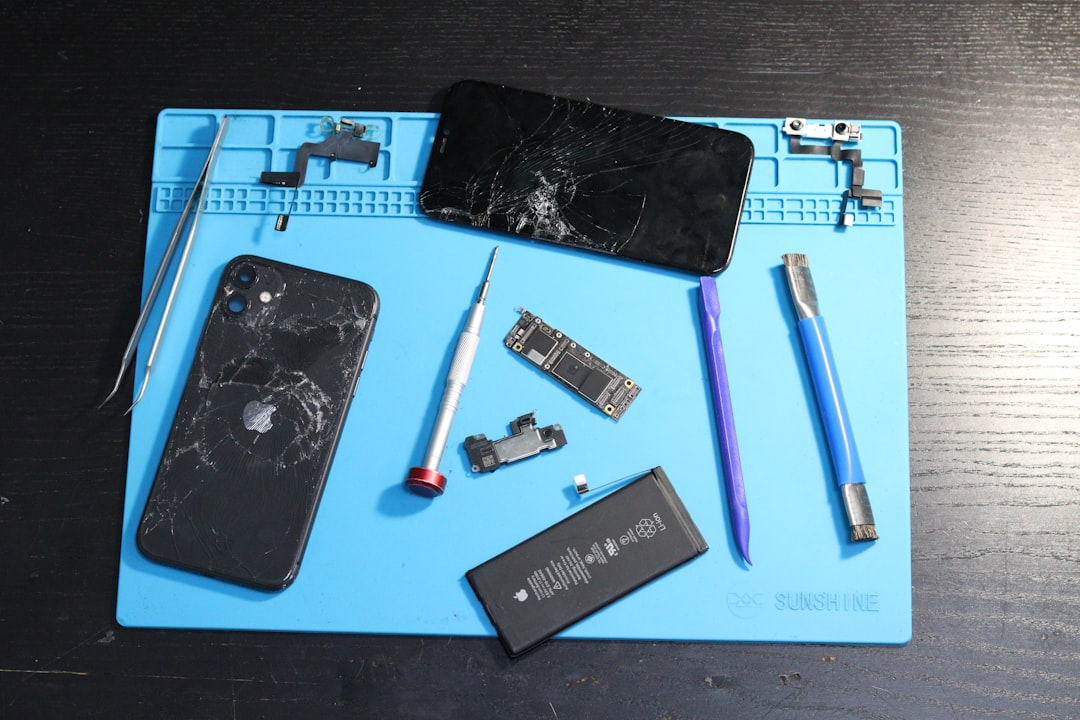
Physical problems such as bent pins, cracked screens, or blown capacitors internally can manifest as display issues. Some users have reported hearing buzzing noises or noticing a burnt smell before the monitor stops working. These signs often indicate serious hardware damage and may require professional repair or complete replacement.
7. Test With Another Monitor
If troubleshooting doesn’t resolve the issue, connect a different monitor to your computer to verify whether the problem lies with the Soyo monitor specifically. If the other monitor functions correctly, then the Soyo model is the likely source of the error, and repair or replacement may be necessary.
Dealing with Specific Soyo Models
Soyo manufactured several models – including LED, LCD, and early flat panel displays – each with its own quirks:
- Soyo DYLM2086: Known for backlight issues and unreliable power buttons
- Soyo Topaz Series: Common HDMI port wear after prolonged use
- Soyo MT-NV22EAB: Occasional random black screens due to firmware glitches
It’s important to look up your specific model’s online forums or support pages for any known recurring faults and firmware updates.
When to Consider Replacement
If all troubleshooting steps fail and the monitor still doesn’t work, it may be time to consider purchasing a new one. Factors to consider include:
- Cost of repair vs. cost of new monitor
- Warranty coverage (some Soyo models had limited 1-year coverage)
- Age of the monitor – units older than 6–8 years may not be worth fixing
With dropping prices and advancing panel technology, replacing an old Soyo monitor can often be a more economical and reliable option in the long run.
Preventative Tips for Prolonged Monitor Life
To avoid future problems, users should adopt better device care and maintenance practices:
- Keep your monitor clean and dust-free to prevent overheating
- Use voltage stabilizers or UPS units for power surge protection
- Avoid frequent plugging/unplugging of video cables
- Turn off the monitor during prolonged inactivity
- Regularly update drivers and firmware
Conclusion
Soyo monitors, while budget-friendly and functional, often face display-related issues due to aging components, software mismatches, or neglect. The problems – while frustrating – are usually solvable with systematic troubleshooting. From checking cables and settings to updating drivers and inspecting for physical damage, users can often breathe new life into their Soyo monitors. When all else fails, knowing when to replace the monitor saves time and energy.
FAQ: Soyo Monitor Troubleshooting
- Q: My Soyo monitor says ‘No Signal.’ What should I do?
- Ensure the video cable is correctly connected, check if the correct input source is selected, try another cable, and test with a different device to rule out GPU issues.
- Q: The screen keeps flickering. What could be the cause?
- Flickering screens may indicate an incorrect refresh rate, loose cable, power fluctuations, or failing backlight. Adjust settings and check connections first.
- Q: Can I update Soyo monitor firmware?
- Most Soyo monitors don’t support direct firmware updates from users. However, some models may have manufacturer tools if supported, though these are rare for older units.
- Q: Should I repair or replace a Soyo monitor with display issues?
- If the monitor is out of warranty and repairs cost more than half of a new unit, replacement is often the better choice due to the age and reliability concerns.
- Q: The monitor lights up but shows no picture. What’s wrong?
- This may indicate a backlight or signal processing issue. Try using another port, different device, and ensure your drivers and output settings are correct.