
Your shiny gaming rig refuses to boot. Fans spin. Lights flash. But the screen stays black. If you’re using the X570 Aorus Elite, don’t panic. This motherboard is powerful, but picky. The good news? Most boot problems are easy to fix.
TL;DR: If your X570 Aorus Elite is not booting, start with the basics. Check power cables, RAM seating, and GPU installation. Clear the CMOS and update the BIOS if needed. In most cases, it’s a loose part, wrong BIOS version, or power issue.
Let’s break it down step by step. Simple. Clear. Stress-free.
First: What Does “Not Booting” Mean?
Not booting can mean different things:
- No power at all
- Fans spin, but no display
- Boot loop (keeps restarting)
- Stuck on BIOS screen
- DRAM or CPU debug light is on
Each symptom points to something different. So let’s start with the easiest fixes.
1. Check the Power Cables (Yes, Really)
This solves more problems than you think.
Make sure these are fully plugged in:
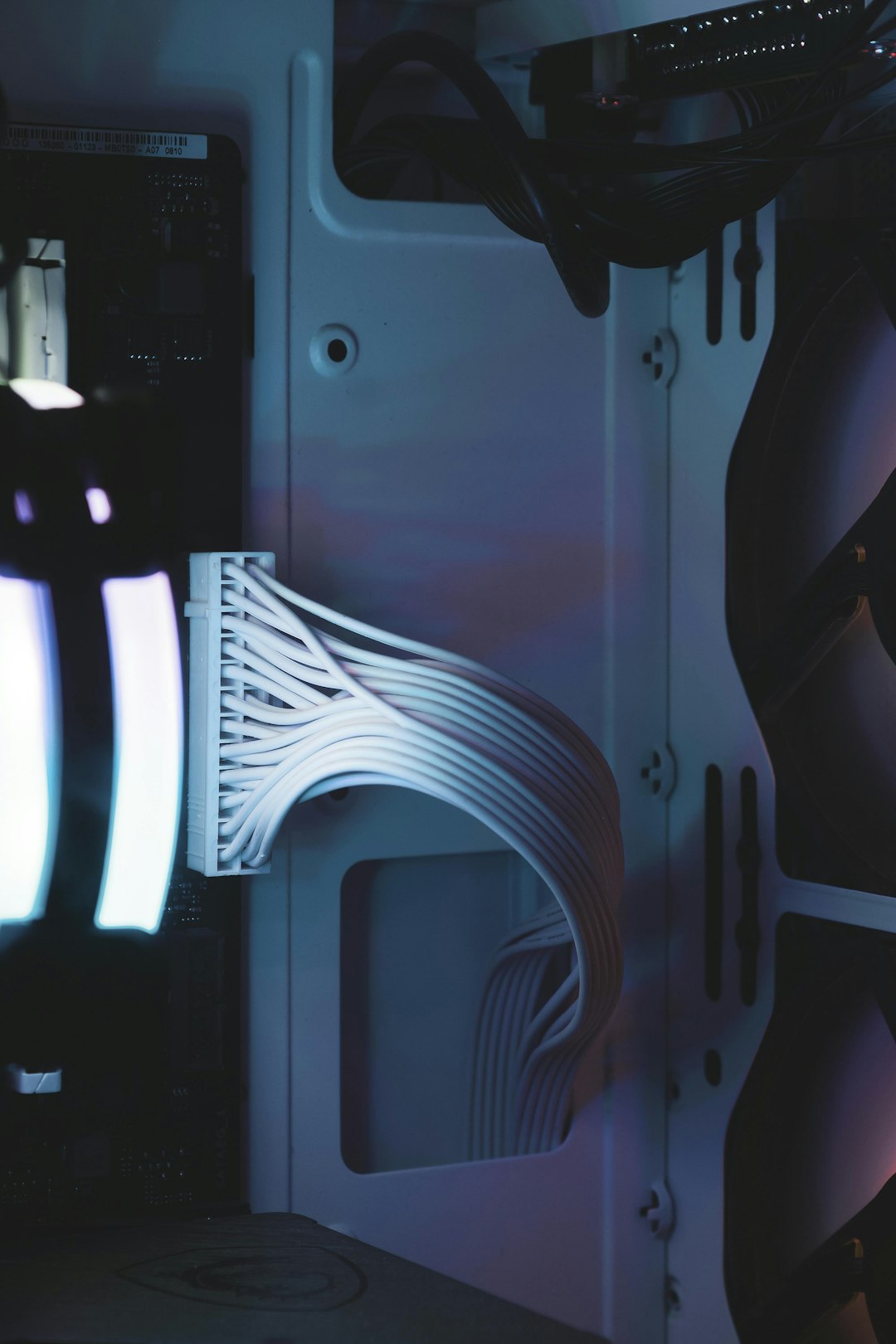
- 24-pin motherboard cable
- 8-pin CPU power cable (top left of board)
- GPU power cables
- Power supply switch is ON
The 8-pin CPU cable is the usual culprit. Many people forget it. Or it’s loose.
Push firmly. Don’t be shy.
Still nothing? Let’s keep going.
2. Listen to the Debug Lights
The X570 Aorus Elite has debug LEDs. These tiny lights tell you what’s wrong.
Look for labels like:
- CPU
- DRAM
- VGA
- BOOT
If one stays on, that’s your problem area.
If CPU Light Is On:
- Check CPU power cable again
- Reseat the CPU
- Look for bent pins
- Update BIOS (important for Ryzen 5000)
If DRAM Light Is On:
- Reseat RAM
- Try one stick only
- Use slot A2 (second slot from CPU)
If VGA Light Is On:
- Reseat GPU
- Check GPU power cables
- Try another PCIe slot
These lights are your best friends. Trust them.
3. Reseat the RAM (The #1 Fix)
RAM causes more boot failures than anything else.
Here’s what to do:
- Turn off the PC.
- Unplug power cable.
- Remove RAM sticks.
- Put one stick into slot A2.
- Click until it snaps in firmly.
If it boots, great. Add the second stick later.
If not, try the other stick alone.
Still dead? Try different slots.
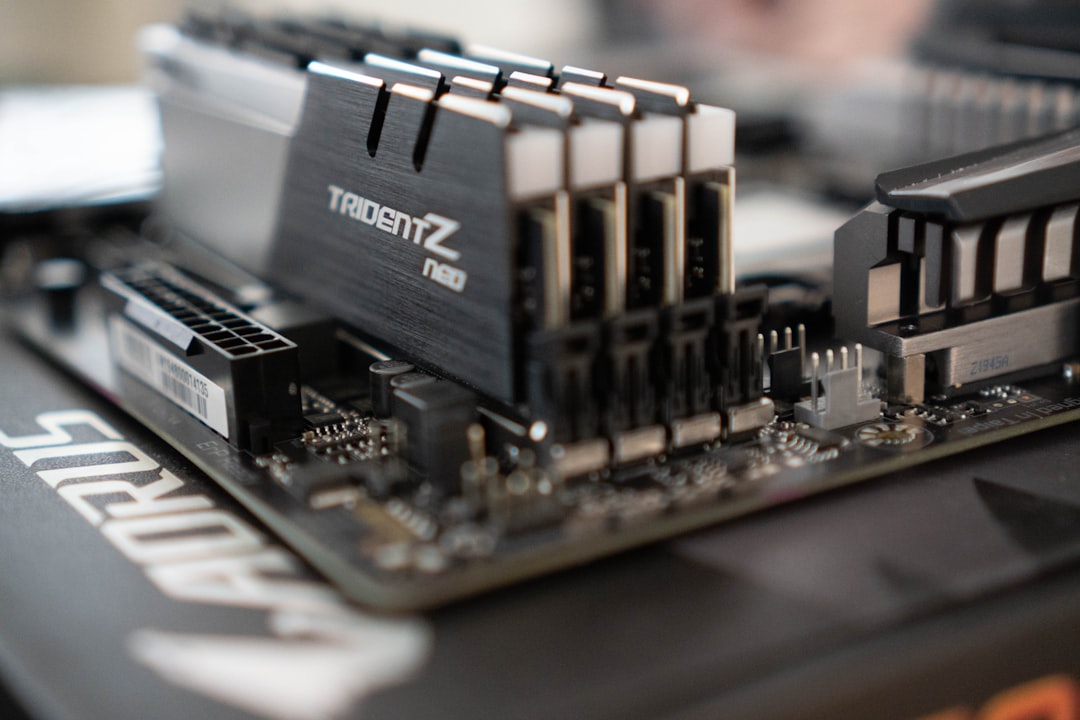
Sometimes it just needs a firm push.
4. Clear the CMOS (Reset the Brain)
If your settings are wrong, the board may refuse to boot.
Clearing CMOS resets everything to factory state.
Method 1: CMOS Jumper
- Turn off PC
- Unplug power
- Short the two CLR_CMOS pins with screwdriver
- Wait 10 seconds
Method 2: Remove Battery
- Take out motherboard battery
- Wait 5–10 minutes
- Put it back
Turn the PC on.
Many times, this alone fixes boot loops.
5. BIOS Version Issues (Very Common)
This is big. Especially with Ryzen CPUs.
If you’re using:
- Ryzen 3000 – usually fine
- Ryzen 5000 – may need BIOS update
If the BIOS is too old, the system won’t boot.
No display. Just fans.
How to Fix It
The X570 Aorus Elite supports Q-Flash Plus. This lets you update BIOS without CPU or RAM.
Here’s how:
- Download latest BIOS from Gigabyte website
- Rename file to GIGABYTE.bin
- Format USB to FAT32
- Place file on USB
- Insert into white BIOS USB port
- Press Q-Flash button
Wait. Don’t interrupt it.
The light will blink. When it stops, it’s done.
This solves many “dead board” mysteries.
6. Check the CPU for Bent Pins
If you removed the CPU recently, inspect it.
Look very closely.
Even one bent pin can stop boot.
If you see bent pins:
- Use needle or small card
- Gently straighten
- Be patient
Don’t rush. It’s delicate work.
7. Test Outside the Case (Rule Out Short)
Sometimes the case causes a short circuit.
We call this “breadboarding.”
Take the motherboard out. Place it on:
- Motherboard box
Connect only:
- CPU
- One RAM stick
- GPU
- Power supply
Short the power pins with screwdriver to start it.
If it boots now, the case was the issue.
Check for:
- Extra standoffs
- Loose screws
- Metal touching board
8. Power Supply Problems
Your PSU might be the villain.
Even if fans spin, it could still be faulty.
Signs of PSU Issues:
- Random shutdowns
- Boot loop
- No power to GPU
- Clicking noise
If possible, test with another PSU.
This is often the hidden problem.
9. GPU Not Displaying?
Important: The X570 Aorus Elite has no integrated graphics.
If your CPU does not have a “G” at the end (like 5600G), you must use a GPU.
Plug display cable into:
- GPU
Not the motherboard.
This mistake happens a lot.
10. RAM Compatibility Issues
Some RAM kits don’t play nicely.
Check the QVL list on Gigabyte’s website.
If your RAM is not listed, it may still work. But updating BIOS helps.
Also try:
- Lower RAM speed in BIOS
- Disable XMP temporarily
Quick Troubleshooting Comparison Chart
| Problem | Likely Cause | Easy Fix | Difficulty |
|---|---|---|---|
| No power at all | PSU or power cable | Check cables and PSU switch | Easy |
| Fans spin, no display | BIOS version | Update using Q-Flash Plus | Medium |
| DRAM light on | Loose or bad RAM | Reseat or test single stick | Easy |
| CPU light on | Bent pins or BIOS | Inspect CPU, update BIOS | Medium |
| Boot loop | Bad settings | Clear CMOS | Easy |
| No display but booting | GPU issue | Reseat GPU | Easy |
When It Might Be a Dead Motherboard
This is rare. But possible.
Signs:
- No LED lights at all
- No reaction when pressing power
- Tested with working PSU
- Cleared CMOS
- Breadboarded outside case
If all tests fail, contact support.
Check warranty.
The X570 Aorus Elite usually comes with a 3-year warranty.
Final Checklist
Before giving up, make sure you:
- Checked all cables
- Reseated RAM
- Reseated GPU
- Cleared CMOS
- Updated BIOS
- Tested PSU
- Breadboarded system
Most people fix the problem before finishing this list.
Final Thoughts
The X570 Aorus Elite is a strong and reliable board. But like all high-performance hardware, it needs everything just right.
Boot problems feel scary. Especially after building a new PC.
But stay calm.
Work step by step.
Don’t change five things at once.
Most of the time, it’s something small.
A loose RAM stick. An old BIOS. A forgotten cable.
You’ve got this.
And when it finally boots?
That power-on screen will feel amazing.