
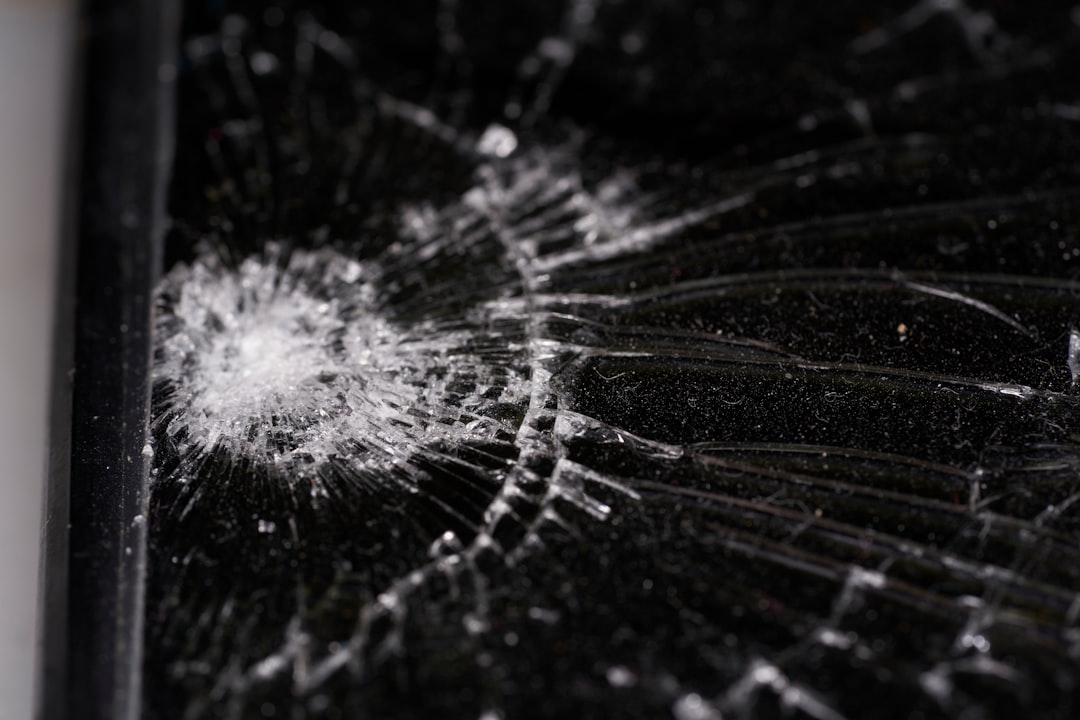
A cloudy patch on a laptop screen can be frustrating, especially when it appears suddenly and disrupts daily tasks like working, gaming, or streaming. These hazy or milky spots may look like moisture trapped under the display, pressure marks, or uneven backlight bleeding. While some cloud patches are minor and harmless, others may point to hardware issues that require attention. Understanding the root cause is the key to choosing the right fix.
TLDR: A cloud patch on a laptop screen is usually caused by pressure damage, moisture exposure, screen delamination, backlight bleed, or manufacturing defects. Some issues can be resolved with gentle cleaning or environmental adjustments, while others require screen repair or replacement. Identifying whether the problem is external or internal helps determine the best course of action. Acting quickly can prevent the issue from getting worse.
What Is a Cloud Patch on a Laptop Screen?
A cloud patch typically appears as a whitish, foggy, or uneven bright area on the screen. It may be visible only on dark backgrounds or persist across all colors. In some cases, it looks like light shining through unevenly; in others, it resembles a smudge that cannot be wiped away.
Clouding can occur on:
- LCD screens (most common)
- LED-backlit displays
- IPS panels
- Touchscreen laptops
To determine the severity, users should observe whether the patch changes size, brightness, or shape over time.
Common Causes of Cloud Patches
1. Pressure Damage
Placing heavy objects on a closed laptop or pressing too hard on the screen can damage internal layers. Laptop displays contain multiple thin layers, including polarizers and backlight diffusers. Excess pressure distorts these layers, which may create cloudy spots.
Signs of pressure damage:
- Cloud appears after the laptop was in a bag
- Visible bright spots when pressing near the area
- Irregular patch shape
2. Moisture or Humidity Exposure
High humidity environments or accidental spills can introduce moisture between screen layers. Even condensation from moving between cold and warm environments may cause temporary clouding.
Indicators of moisture damage:
- Cloud looks like fog or water stain
- Patch may shrink as device dries
- Presence of corrosion near edges
If left untreated, moisture damage can worsen and lead to permanent screen discoloration.
3. Backlight Bleeding
Backlight bleeding occurs when light leaks around the edges or pressure points of the screen. It is especially noticeable on dark backgrounds.
This issue is common in:
- Budget or older LCD panels
- Screens with uneven assembly
- Displays with loose bezel frames
Unlike dead pixels, backlight bleeding does not appear as tiny dots but rather as diffused glowing clouds.
4. Delamination
Delamination happens when screen layers begin to separate due to manufacturing defects, age, or heat exposure. As adhesive layers degrade, cloudy spots may form.

Delamination typically:
- Spreads gradually
- Cannot be cleaned off
- Appears beneath the glass surface
5. Manufacturing Defects
Some laptops develop cloudy patches due to poor factory calibration or uneven backlight diffusion. If the issue appears shortly after purchase, it may qualify for warranty repair or replacement.
6. Heat Damage
Excessive heat from internal components or prolonged sunlight exposure can weaken adhesives and distort display layers. Overheating may also intensify backlight inconsistency.
Laptops used on soft surfaces such as beds or couches are particularly vulnerable due to blocked ventilation.
How to Diagnose the Problem
Before attempting any fix, users should perform basic troubleshooting:
- Change background colors (black, white, grey) to check visibility.
- Adjust brightness levels to see if the cloud intensifies.
- Connect an external monitor to rule out GPU issues.
- Gently clean the screen with a microfiber cloth.
If the cloud appears on screenshots, the issue may be software-related. If not, the problem is almost certainly hardware-based.
Fixes for Cloud Patches
1. Basic Cleaning
Sometimes, what appears to be clouding is simply residue buildup.
Steps:
- Turn off the laptop.
- Use a dry microfiber cloth.
- If necessary, apply a small amount of screen-safe cleaner.
- Never spray liquid directly onto the screen.
2. Drying Out Moisture
If moisture is suspected:
- Power off immediately.
- Place the laptop in a dry, ventilated area.
- Use silica gel packs nearby (not directly on screen).
Avoid using hair dryers or direct heat, which may worsen internal damage.
3. Reducing Backlight Bleed
While backlight bleed cannot always be eliminated, it may be minimized:
- Slightly loosening bezel screws (advanced users only)
- Reducing maximum brightness settings
- Using darker themes
However, attempting internal adjustments may void warranties.
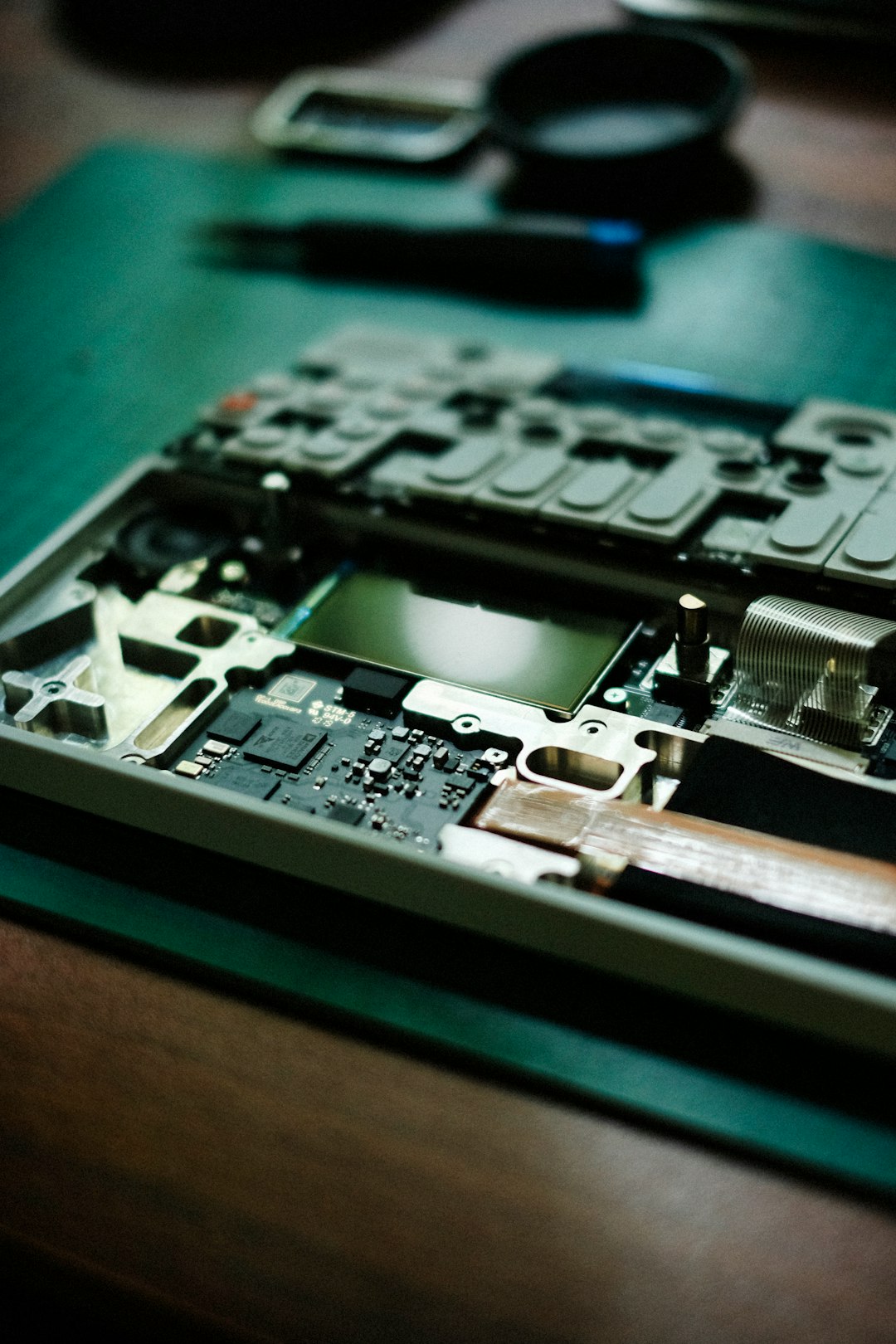
4. Screen Replacement
If the issue stems from delamination, pressure damage, or severe backlight bleed, replacement may be the only permanent solution.
Replacement options:
- Manufacturer repair service
- Authorized repair center
- DIY replacement kit
Repair Options Comparison
| Option | Cost | Difficulty | Warranty Safe | Best For |
|---|---|---|---|---|
| Basic Cleaning | Low | Easy | Yes | Surface smudges |
| Moisture Drying | Low | Easy | Yes | Condensation issues |
| Bezel Adjustment | Low | Moderate | No (usually) | Minor backlight bleed |
| Professional Repair | Medium to High | None | Yes | Delamination or defects |
| DIY Screen Replacement | Medium | High | No | Out-of-warranty laptops |
When to Seek Professional Help
Professional assistance is recommended if:
- The cloudy patch spreads rapidly.
- The screen flickers or shows color distortion.
- There are visible cracks or internal fractures.
- The device is still under warranty.
Laptop screens are delicate, and improper handling can turn a minor issue into a complete display failure.
How to Prevent Cloud Patches
Prevention is often easier and cheaper than repair. To avoid future clouding:
- Use a protective laptop sleeve.
- Avoid placing heavy objects on the lid.
- Keep liquids away.
- Maintain proper ventilation.
- Avoid extreme temperature changes.
- Clean the screen regularly and gently.
Small daily habits significantly reduce the risk of screen damage.
Are Cloud Patches Always Permanent?
Not necessarily. Surface residue and temporary condensation may disappear completely with proper care. However, issues involving panel separation, internal damage, or manufacturing defects are usually permanent unless repaired.
Determining permanence depends on:
- Duration of the cloud
- Whether the patch changes size
- The visibility across different brightness settings
Final Thoughts
A cloud patch on a laptop screen can range from a minor cosmetic inconvenience to a sign of serious hardware damage. Identifying the cause—whether pressure, moisture, heat, or factory defects—makes all the difference in selecting the right solution. While simple cleaning or drying may solve surface-level issues, deeper internal problems often require professional repair or full display replacement. Taking preventive measures ensures that the screen remains clear, sharp, and reliable for years to come.
Frequently Asked Questions (FAQ)
1. Can a cloud patch on a laptop screen go away on its own?
If caused by temporary condensation, it may disappear as the device dries. However, physical or structural damage usually does not self-correct.
2. Is a cloud patch the same as a dead pixel?
No. A dead pixel appears as a tiny black or colored dot, while a cloud patch is a larger, diffused bright or hazy area.
3. How much does it cost to fix a cloudy laptop screen?
Costs vary depending on the model and severity, but professional screen replacement typically ranges from moderate to high expense compared to simple cleaning fixes.
4. Can screen protectors prevent clouding?
Screen protectors may reduce minor surface scratches and pressure marks but cannot prevent internal panel damage or backlight bleeding.
5. Should a laptop with clouding be replaced entirely?
Replacement is only necessary if repair costs approach the value of the device or if multiple hardware issues are present.
6. Does overheating always cause cloud patches?
Not always, but prolonged high temperatures can weaken adhesives and worsen internal display irregularities.